



Building Your Second Brain:
A Practical PARA Setup
Stop losing ideas, stop searching for files, stop recreating work you’ve already done. This guide walks you through setting up PARA — the knowledge organization system that actually sticks — with real folder structures, tool comparisons, and the mistakes almost everyone makes in week one.
Table of Contents
- Why your brain was never meant to store this
- What PARA actually is (and isn’t)
- The four categories, precisely defined
- Step-by-step setup: Day 1 through Month 1
- Real folder structures for common tools
- The Projects vs. Areas boundary (it’s blurrier than you think)
- Which tool fits which person
- Seven mistakes almost everyone makes
- Maintenance: the weekly and monthly reviews
- PARA in the AI era: what changes
- Honest verdict
01 —Why your brain was never meant to store this
There’s a line from David Allen’s Getting Things Done that keeps coming back to me: “Your mind is for having ideas, not holding them.” It sounds obvious the first time. It lands harder after you’ve spent 25 minutes hunting for a note you definitely took, on a topic you definitely know something about, somewhere in a folder system you created with the best of intentions six months ago.
The problem isn’t that you’re disorganized. It’s that the volume of information a modern knowledge worker handles each day was genuinely not anticipated by human cognitive architecture. The numbers are worth pausing on.
IDC’s long-running research puts the average knowledge worker at roughly 2.5 hours per day searching for information — about 30% of the working day. McKinsey famously found that employees spend nearly 20% of their week just locating internal information or tracking down colleagues who have it. And neither figure counts the time spent recreating work that was done, documented, and subsequently lost in digital fog.
This isn’t a time management failure. It’s an organizational one. And it’s exactly the problem Tiago Forte set out to solve when he spent the better part of a decade developing what he’d eventually call Building a Second Brain — and, more specifically, the structural backbone of that system: PARA.
Forte describes the origin of Building a Second Brain as starting with a chronic illness that forced him to externalize his thinking just to function. That’s not a startup origin story — it’s a genuinely practical necessity. The system reflects that. It isn’t theoretical; it’s built around what actually works when your cognitive resources are limited and the stakes are real.
02 —What PARA actually is (and isn’t)
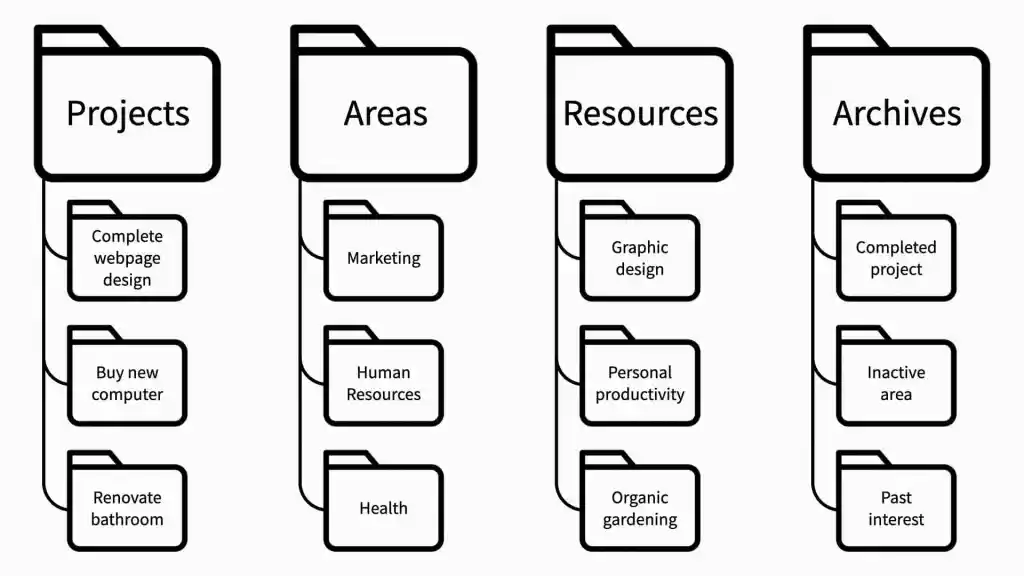
PARA stands for Projects, Areas, Resources, Archives. At its most stripped-down, it’s a four-folder system you apply consistently across every digital tool you use — your notes app, your file manager, your cloud storage, your email folders, wherever information lives.
The organizing principle isn’t topic, and it isn’t date, and it isn’t source. It’s actionability. Every piece of information you save gets placed according to how soon and how directly you’ll act on it. That single shift in thinking — from “what is this about?” to “when will I use this?” — is what separates PARA from the standard folder taxonomies most people inherit from their computer’s default structure.
Forte describes PARA as “a simple, comprehensive, yet extremely flexible system for organizing any type of digital information across any platform.” The flexibility claim is real — it works in Notion, Obsidian, Apple Notes, Google Drive, or a plain file system. The comprehensiveness claim is also real, in the sense that everything in your digital life fits into one of the four categories without exception.
What PARA isn’t: a task manager. It doesn’t replace your to-do list. It doesn’t tell you what to work on or when. It tells you where to put things and where to find them. The execution layer — deciding what to do next — sits on top of PARA, not inside it. This distinction trips people up constantly. PARA is storage architecture, not workflow management.
It also isn’t a capture system. The CODE method (Capture, Organize, Distill, Express) is the full workflow Forte recommends; PARA handles the Organize step. You still need to decide what’s worth saving in the first place. PARA just gives you a home for things once you’ve decided they’re worth keeping.
03 —The four categories, precisely defined
Projects
A series of tasks linked to a goal, with a specific deadline or completion state. The key test: can you finish it?
- Write Q3 performance review
- Redesign personal website
- Plan Portugal trip, September
- Launch newsletter issue #12
- Migrate database to new server
Areas
Ongoing responsibilities with a standard to maintain — no end date, just sustained attention. The key test: does it ever finish?
- Health & fitness
- Personal finances
- Team management
- Marriage / relationships
- Home maintenance
Resources
Topics of ongoing interest or reference material you’ll want to consult eventually — but not tied to a specific current project.
- Productivity methods
- JavaScript learning notes
- Recipes & cooking
- Interior design inspiration
- Research on sleep science
Archives
Inactive items from the other three categories. Projects you’ve completed, Areas you no longer maintain, Resources you’ve moved past.
- Completed project: Website v1
- Former area: Freelance clients
- Old resource: Adobe Premiere notes
- Previous employer docs
- 2023 tax documents
The ordering matters. Forte is explicit that you should check the categories in sequence when deciding where to place something. First ask: is this connected to an active project? If yes, it goes there. If no, is it connected to an ongoing area of responsibility? And so on down to Archives, which is less a destination you place things in deliberately and more a category things move into when they lose active relevance.
| Category | Time horizon | Action required? | Typical volume | Review cadence |
|---|---|---|---|---|
| Projects | Days to months | Yes — active work | 5–15 active at once | Daily / weekly |
| Areas | Ongoing (indefinite) | Standards to maintain | 5–10 areas | Weekly / monthly |
| Resources | Future reference | No immediate action | Grows over time | As needed |
| Archives | Historical | None (reference only) | Largest category | Rarely, if ever |
The word “Archives” makes many people nervous — they worry they’re burying things they’ll need. But Archives isn’t a graveyard. It’s a searchable history. You’re not deleting anything; you’re just de-emphasizing it. Moving a project to Archives when it’s done is one of the most satisfying actions in the whole system, and search means you can always retrieve it within seconds.
04 —Step-by-step setup: Day 1 through Month 1
The single biggest mistake people make when starting PARA is trying to organize everything before they start using the system. Don’t. The system should emerge from real use, not anticipate every possible need. Here’s a realistic ramp that respects that principle.
Day 1: The minimal start
Forte himself recommends starting with just two folders: Projects and Archive. That’s it. The reasoning is pragmatic — the distinction between Areas and Resources can wait until you’ve got 50–100 things in the system and feel the need for it. Complexity you don’t yet need is just friction.
- Create four top-level folders in your primary note-taking app: Projects, Areas, Resources, Archives. (In that order — the ordering reflects priority and actionability.)
- List your active projects. Spend 10 minutes writing down everything you’re currently working on that has a defined endpoint. Be specific: “Redesign landing page for client X” not “Design work.”
- Create one folder per active project inside Projects. Don’t create anything else yet. No Areas subfolders, no Resource categories.
- Capture one thing. Drop something — anything — into the right project folder. A note, a link, a file. The goal is to use the system on day one.
- Resist the urge to organize the rest. Don’t touch the noise in your existing notes app. Old stuff can go to Archives in bulk if it bothers you, or just be ignored for now.
Week 1–2: Building the habit of capture
The system only works if information actually flows into it. Before you perfect the structure, focus entirely on making capture frictionless. When you read something interesting, save it. When you have an idea, note it. Don’t worry about where it goes yet — that sorting can happen in a quick weekly review.
- Set up an Inbox. Whether it’s a folder called “Inbox” or just the root of your notes app, you need a single landing place for unsorted captures. Process it once a week.
- Add Areas gradually. When you notice you’re creating multiple projects that cluster around one life domain — say, three different projects all related to your health — create an Area for it. Let Areas emerge from your actual work.
- Start a weekly review ritual. 20 minutes, same time each week. Process your Inbox, update project statuses, move anything completed to Archives.
Month 1: First audit
After a month, you have real data on what you actually capture and use. This is when you refine. Look at your Projects list — do you have more than 15? You probably need to be more selective about what counts as a project. Look at your Resources — is anything in there actually something you’re actively working on? Move it to a Project.
The 40% adoption finding
A 2023 survey among Notion’s user base found that over 40% had implemented some form of PARA in their personal or professional workflows. The research also documented that a project manager at a tech startup who integrated PARA into their daily routine via Obsidian reported a 25% reduction in missed deadlines, attributed to improved task visibility. A mid-sized marketing firm that adopted PARA team-wide in Notion templates reported a 15% improvement in cross-team collaboration efficiency, primarily from reducing duplicated efforts.
These figures come with the usual caveats of self-reported productivity data — they’re directionally interesting rather than scientifically definitive. But the directional signal is consistent with what the system is designed to do.
05 —Real folder structures for common tools
The beauty of PARA is that the same logical structure applies regardless of which tool you’re using. Here’s what it looks like in practice across three common setups.
Plain file system (macOS / Windows)
Notion
Notion’s database structure actually enriches PARA considerably. Rather than flat folders, you can have linked databases where, for example, your Projects page has a “Status” property (Active, Paused, Complete) and your Resources notes link to related Projects. The official Second Brain Notion template from Forte Labs includes PARA structure, project trackers, and capture workflows.
The risk with Notion is over-engineering. It’s very easy to spend three hours building a beautiful dashboard and zero hours actually using it. Start with the simplest possible Notion structure — four pages, nothing more — and add database features only when you feel the absence of them.
Obsidian
Obsidian adds something PARA alone doesn’t have: bidirectional linking. Your notes can connect to each other regardless of which folder they’re in. This makes the Archives category less of a dead-end — an archived project’s notes are still fully connected to anything you link them to. Thomas Frank, who has written extensively on PARA implementation, recommends using a flat folder structure in Obsidian and relying more on tags and links than on deep folder hierarchies.
Notion is better if you collaborate, need database views, or want a polished workspace that non-technical people can understand. Obsidian is better if you want full offline access, own your data as plain Markdown files, and value the knowledge graph that emerges over time. Neither is universally right. The question is whether your knowledge is primarily about projects or primarily about ideas — Notion handles the former better; Obsidian handles the latter.
06 —The Projects vs. Areas boundary (it’s blurrier than you think)
This is where most people get stuck. The textbook distinction is clear enough: Projects have a defined outcome and an end date. Areas don’t end — they just require sustained attention. But real life doesn’t cooperate with clean taxonomies.
“Hire a senior developer” is a project. “Team management” is the area it belongs to. Fine — that’s clean. But what about “Get to 80kg body weight”? Is that a project (it has a specific goal) or does it belong under the Area “Health”? And once you hit 80kg, does the goal just… become maintenance under the Area?
✓ Projects — recognizable signals
- Has a clear deliverable you can hand to someone
- You’d know immediately when it’s done
- Has a natural stopping point or deadline
- Requires a burst of focused work
- Example: “Publish blog post on PARA setup”
✗ Areas — recognizable signals
- Never technically “finished” — always in progress
- You’d feel it if you neglected it for a month
- More about maintaining a standard than achieving a goal
- Example: “Writing” (ongoing practice, not a specific piece)
Forte’s practical advice: when in doubt, make it a Project. Projects create momentum because they can be finished. Areas are easy to let stagnate because there’s no clear win condition. By turning vague ongoing concerns into defined projects — “Review and update household budget” rather than letting it disappear into a “Finances” area — you give yourself something completable, which the human brain finds deeply satisfying.
A pragmatic note from The Pragmatic Mind’s in-depth analysis is worth taking seriously: in digital environments, moving items between Projects and Areas can break file paths, shared links, and references. If you find yourself constantly shuffling things between the two categories, consider whether you actually need the distinction enforced at the folder level, or whether you can manage it through properties and tags inside a tool like Notion.
07 —Which tool fits which person
| Tool | Best for | PARA fit | Limitations | Cost (2025) |
|---|---|---|---|---|
| Notion | Teams, project-heavy workers, visual thinkers | Excellent — native database structure mirrors PARA well | Can become bloated; requires internet | Free / $10/mo (Plus) |
| Obsidian | Researchers, writers, heavy note-takers | Very good — local files, bidirectional links add power | Steeper learning curve; less collaborative | Free (personal) / $50/yr (sync) |
| Apple Notes | Apple ecosystem users, lightweight needs | Works fine — simple folders, fast capture | No cross-platform; limited advanced features | Free |
| Logseq | Daily journal / outliners; open-source fans | Good with adaptation — journal-first, but PARA maps cleanly | Outliner structure can feel rigid | Free (open source) |
| Plain file system | Minimalists, developers, those valuing longevity | Excellent — the original PARA context | No search enhancement; no backlinks | Free |
| Evernote | Long-time users with large existing libraries | Good — Notebooks = folders, tags help | Pricing changes; slower development pace | Free / $14.99/mo (Personal) |
One rule worth enforcing regardless of tool: use the same PARA structure in every tool. If your notes app has Projects/Areas/Resources/Archives, your Google Drive should too. Your email filing system. Even your bookmarks. The cognitive ease of PARA comes from never having to wonder which tool a thing is in — only which category.
08 —Seven mistakes almost everyone makes
1. Creating empty folders before you have anything to put in them
Forte tells a story about an engineering firm that pre-built elaborate folder hierarchies before anyone used them. The engineers spent more time navigating empty folders than working. Thomas Frank’s summary of The PARA Method book captures the rule cleanly: never create a folder (or tag) before you have something to put in it. Build the structure just-in-time, not just-in-case.
2. Treating PARA like a filing cabinet
A filing cabinet is organized for retrieval. PARA is organized for action. The difference sounds semantic but isn’t. In a filing cabinet, you create categories and then try to fit your work into them. In PARA, categories emerge from your actual active work. Projects folder should only contain things you’re actively working on right now, not things you might work on someday.
3. Over-nesting
Subfolders feel productive. They’re usually not. A folder structure that goes Projects → Client Work → Active → Q3 → Marketing → Social Media is five clicks and a frustration before you even open a file. Forte recommends no more than three levels of nesting in most cases. Flat is usually faster.
4. Trying to mirror the structure identically across every tool
As The Pragmatic Mind notes, some guides suggest replicating PARA exactly across every app — identical folder names, identical hierarchies, every time. This creates maintenance overhead that often exceeds the benefit. What matters is that the logic is consistent, not that every app has identical folder names. Your notes app holds different content than your file system; forcing them into the same structure can add friction rather than reduce it.
5. Conflating PARA with task management
PARA is a knowledge organization system. It tells you where things live. Your task manager tells you what to do and when. These are different problems with different solutions. Trying to run all your tasks out of PARA folders — using project notes as pseudo-to-do lists — tends to end in something that’s neither a good knowledge system nor a good task manager. Keep them separate.
6. Never archiving anything
The Archives are not a place of shame. Finished projects should be archived — it’s how you keep the Projects list to a manageable size. A Projects list with 47 items isn’t a list; it’s another form of overwhelm. Archive ruthlessly. Everything remains searchable. Nothing is lost.
7. Starting over from scratch when the system gets messy
Everyone’s PARA gets messy eventually. Notes end up in the wrong place. A project bleeds into an area. Inbox accumulates. The solution is the weekly review — not a full rebuild. The urge to start fresh with a completely redesigned system is often just procrastination wearing productivity’s clothing. Maintain what you have; iterate don’t rebuild.
PARA has real weaknesses worth acknowledging. It organizes by location, not by connection. If you’re doing research-heavy or conceptually rich work where ideas need to link across categories, a pure PARA setup won’t surface those connections. Zettelkasten or a hybrid approach (PARA folders + bidirectional links in Obsidian) handles this better. PARA is excellent for people whose work is primarily project-driven; it’s less naturally suited to pure idea exploration.
09 —Maintenance: the weekly and monthly reviews
A Second Brain that isn’t maintained becomes a haunted house — full of things you once cared about but can no longer find or interpret. The weekly review is the system’s immune response. It’s what prevents entropy.
The weekly review (20–30 minutes)
- Process everything in your Inbox to zero
- Scan all active Projects — does each one have a clear next action?
- Move completed projects to Archives
- Check if any Resources should be promoted to active Projects (or vice versa)
- Review Areas briefly — are any standards slipping that need attention?
- Clear your capture inbox in any read-later apps (Readwise Reader, Pocket, etc.)
The monthly review (45–60 minutes)
- Do your active Projects still reflect your actual priorities?
- Are there any Areas you should add or retire?
- Is your Resources folder growing without purpose? Prune anything you’ll genuinely never use
- Consider whether your tool setup is still working — friction is a signal
- Review archived projects from last month: any insights worth extracting?
The reviews don’t need to be perfect. A 15-minute imperfect review each week beats a two-hour perfect review that never happens. The goal is to keep the system representing reality — to trust that when you open your Projects folder, what you see there is actually what you’re working on.
On the “weekly review” habit specifically
David Allen’s original GTD system popularized the weekly review, and Forte builds directly on this. The core insight from both systems is the same: your brain spends significant energy on “open loops” — incomplete tasks and unresolved commitments held in working memory. Externalizing these into a trusted system and processing them on a regular cadence reduces the cognitive load that causes the background anxiety many knowledge workers accept as normal. The research on this from a cognitive load theory perspective is substantial — reducing the number of active items held in working memory demonstrably improves focus on the task at hand.
10 —PARA in the AI era: what changes (and what doesn’t)
The obvious question in 2025: if AI can search your notes semantically, retrieve things by meaning rather than location, and synthesize across dozens of documents in seconds — does PARA still matter? The answer is nuanced, and it’s worth being honest about rather than giving the reflexive “the principles still apply!” answer.
What AI changes: Retrieval. If you’re using Notion AI, Obsidian with a vector search plugin, or a tool like thesecondbrain.io (which implements PARA with AI-assisted organization), the mechanical “I can’t find it” problem is largely solved. You can describe what you’re looking for in natural language and get it back regardless of where it’s filed.
What AI doesn’t change: The organizational logic that helps you think clearly. Knowing that everything in your Projects folder is something you’re actively working on — and everything in Archives is historical — isn’t just for retrieval. It’s for maintaining a clear mental model of your commitments. AI can tell you where a note is; it can’t tell you whether you should still be working on what the note refers to.
Forte has incorporated AI into the Second Brain framework explicitly, describing it as a way to have AI search across your knowledge base, match documents with relevance scores, and generate summaries from your own saved content. The PARA structure, in this model, becomes the organized input that makes AI outputs more precise and useful — rather than searching a garbage heap, the AI is searching a curated library.
The practical upshot for 2025: PARA is, if anything, more valuable as a thinking framework in an AI-assisted environment, even as it becomes less critical as a pure retrieval mechanism. Use the structure to clarify your own priorities; let AI handle the search.
11 —Honest verdict
PARA isn’t magic. It doesn’t make you more creative, doesn’t generate ideas, and won’t rescue a project that’s struggling for reasons that have nothing to do with organization. People who come to it expecting transformation are often disappointed to discover that it’s, at its core, a folder naming convention with a philosophy attached.
What it actually does — and this is genuinely useful — is reduce the friction of finding things, lower the anxiety of information overwhelm, and create a structure that rewards you for finishing projects (by archiving them) and penalizes you for having too many active at once (by making an overcrowded Projects folder visually obvious). Those are real, practical benefits.
The people who get the most from it tend to share a few characteristics: they do primarily project-driven work, they’re willing to spend 20 minutes weekly on maintenance, and they resist the urge to over-engineer the structure. The people who struggle tend to be either too perfectionist (endless reorganization, never using the system to do actual work) or too casual (creates the structure, captures nothing, wonders why it doesn’t help).
Start with just your Projects folder. That single change — knowing with confidence what you’re actively working on right now — is already worth the time you spent reading this.
Further reading & sources
All data and claims in this article are drawn from primary sources. Key references:
- Tiago Forte — The PARA Method (Forte Labs)
- Building a Second Brain: Definitive Introductory Guide
- IDC / McKinsey data on information search time (Cottrill Research)
- Self-Organizing PARA Systems research — Remio.ai (2025)
- Thomas Frank — How to Organize Your Life with PARA
- The Pragmatic Mind — PARA Method: Pragmatic Guide (2026)
- Knowledge Management Trends & Statistics 2025 — Livepro
More from Trendix.tech
Zettelkasten vs. PARA: Which System Actually Works?
Productivity Systems: What Actually Works
Obsidian vs. Notion: Which PKM Tool Actually Fits Your Workflow?
PARA Method Deep Dive: Organise Your Whole Digital Life
Personal Knowledge Management: A Complete Beginner’s Guide
Second Brain Methods Compared
Research Design Fundamentals: A Practical Framework
Building a Clean Notion Workspace from Zero: A Setup Guide
Atomic Habits for Knowledge Workers:Small Actions, Massive Results