Proven Obsidian Techniques
12 Proven Obsidian Techniques for Researchers: The Complete Setup Guide
Most tutorials show you how to install plugins. This one shows you how to actually think inside Obsidian — vault architecture, Zotero wiring, Dataview queries that save hours, and the structural decisions nobody explains until you’ve already done them wrong twice.
Something interesting happened around 2020. A tool that had been quietly circulating in productivity circles — Obsidian, a markdown-based note app with an unusual graph view — started appearing on the laptops of PhD students, postdocs, and working researchers across disciplines. By 2025, it’s almost a cliché in academic communities: “every new PhD student comes in with Obsidian installed,” as AI researcher Emile van Krieken put it in his now-widely-cited breakdown of his academic setup.
Why the crossover? Part of it is practical. Your notes live on your computer, not a company’s server. They’re plain text files. When the startup behind your old note app shuts down — and several did, between 2018 and 2023 — you lose nothing. For researchers, that kind of data sovereignty actually matters. A literature note from your first year of a PhD should still be readable in year five, or fifteen years later when you’re writing a retrospective paper.
But the bigger draw is structural. Research thinking is non-linear. You read a paper in 2023 that unexpectedly connects to something you annotated in 2021, which reshapes a chapter you’re writing now. Filing systems built on folders — even good ones — struggle with this. Obsidian’s bidirectional links let you surface those connections in a way that’s genuinely hard to replicate in Notion, Word, or a well-organized filesystem.
That said, most “Obsidian for researchers” content online skips the hard parts. You’ll find plenty of plugin lists and pretty vault screenshots. What you won’t find much of: honest discussions about vault architecture failures, the right level of structure before linking, or why the Zettelkasten method — as usually described — is subtly wrong for empirical researchers. This guide tries to fill those gaps.
One PKM practitioner analyzed his own 8,000-note Obsidian vault (as of February 2025) and found approximately 8 internal links per note on average — a ratio that reveals the system’s true value lies in connection density, not mere collection. Source: Sébastien Dubois
Why Obsidian, Specifically — and What It Can’t Do
Before spending a weekend setting up your vault, it’s worth being clear-eyed about what Obsidian actually is and isn’t. It’s a local-first markdown editor with bidirectional linking and an extensible plugin system. That’s it. The graph view is a visualization on top of that, not a core feature to build your workflow around.
What researchers get from that simple foundation:
- Data longevity. Your notes are `.md` files. Any text editor can open them. No vendor lock-in, no subscription for basic functionality.
- Bidirectional links. When note A links to note B, note B knows about it. This sounds minor until you realize it fundamentally changes how you navigate a large knowledge base.
- Plugin extensibility. The community plugin library has grown to over 2,700 plugins as of mid-2026. For researchers, the relevant ones are well-maintained and genuinely powerful — Dataview, Zotero Integration, Templater, and a handful of others covered below.
- Free for personal use. Sync costs $8/month if you want Obsidian’s encrypted cross-device sync. You can also use iCloud, Dropbox, or a Git repository — your call.
What it genuinely cannot do well: real-time collaboration, structured databases (Notion does this better), and calendar/task management (use a dedicated tool there). One data scientist who manages twelve people and four projects reported dropping his knowledge management overhead from 30–40% of his time to under 10% using Obsidian — but he was explicit that task management stayed in other tools.
| Task | Obsidian | Notion | Zotero alone | Word/Google Docs |
|---|---|---|---|---|
| Linked literature notes | ✓ | ~ | ✗ | ✗ |
| Citation management | ~ (via plugin) | ✗ | ✓ | ~ (via plugin) |
| Data sovereignty | ✓ | ✗ | ✓ | ~ |
| Team collaboration | ✗ | ✓ | ~ | ✓ |
| Manuscript drafting | ✓ | ~ | ✗ | ✓ |
| Dynamic note queries | ✓ | ✓ | ✗ | ✗ |
Vault Architecture That Actually Scales
Here’s the thing about vault structure: almost every Obsidian guide tells you not to overthink it and just start writing. That advice is fine for a personal journal. For a research vault that will hold five years of literature notes, experiment logs, and manuscript drafts, it’s genuinely bad advice.
Emile van Krieken — who has been using Obsidian since 2020 and contributed several popular plugins — makes this point directly: “Thinking up-front about the structure of your vault will pay off. It is significantly easier to restructure an already structured vault, than to introduce structure to a bunch of notes without structure.”
The architecture that works for most researchers combines two ideas: PARA for broad organization (Projects, Areas, Resources, Archive) and typed notes for everything else. Here’s what a production research vault typically looks like:
A few decisions worth making deliberately before you start:
- Naming convention for literature notes. Use
@AuthorYear_ShortTitle. The@prefix makes them instantly recognizable in search and graph view. This also matches the BibTeX citekey format from Better BibTeX (Zotero), which matters for manuscript writing later. - Where images go. Put all attachments in a single
00-Meta/Attachments/folder. Scattering them breaks portability. - Tags vs. folders. Use folders for note types. Use tags for note properties (like
#status/draft,#method/interview,#concept/attention). These are orthogonal, not competing.
Don’t create a folder structure that mirrors your research topics (a “Neuroscience” folder, an “Economics” folder, etc.). Topics evolve and notes don’t fit neatly. Use tags for topics, folders for note types.
The YAML Front-Matter Habit — Make Every Note Queryable
YAML front matter (or “Properties” in Obsidian’s newer interface) is the metadata block at the top of each note, enclosed between --- delimiters. Most researchers either ignore it entirely or use it inconsistently, which means they can’t query it later with Dataview. This is worth getting right from the start.
The key insight: front matter turns your vault into a lightweight database. You can ask questions like “show me every literature note tagged with #method/fMRI that I haven’t yet synthesized” — but only if the metadata is consistent.
Here’s a template that covers most research use cases:
Literature Note — YAML Front Matter Template---
title: "{{title}}"
authors: ["{{authors}}"]
year: {{year}}
doi: "{{doi}}"
journal: "{{journal}}"
type: literature-note
status: unread # unread | reading | read | synthesized
relevance: medium # low | medium | high | critical
tags:
- "#concept/attention"
- "#method/fMRI"
- "#project/thesis"
date-added: {{date}}
date-read:
---A few fields worth explaining:
statusis the single most useful field for research. You can query all papers you’ve marked “read” but not yet “synthesized” — that’s your backlog for the literature review.relevancesounds obvious but isn’t. Add it when you first encounter a paper, before you’ve read it. Your first impression is often accurate and spares future-you from re-reading abstracts.- Tags in YAML front matter are preferable to inline tags because Dataview handles them more reliably. Use a consistent taxonomy — define it in your
00-Meta/README.mdbefore you have 400 notes with inconsistent tagging.
Set Obsidian’s “Default location for new notes” to your 00-Meta/Attachments folder in Settings → Files & Links. Then configure Templater to move notes to the correct folder based on their type. This keeps your vault root clean from the start.
Zotero + Obsidian: The Wiring That Actually Works
Zotero and Obsidian are complementary, not competing. Zotero handles reference collection and PDF management. Obsidian handles synthesis and thinking. The integration between them is where most researchers lose days to configuration rabbit holes — so here’s the shortest path that works in 2026.
What you need in Zotero
- Better BibTeX plugin. This generates stable, consistent citekeys (e.g.,
Carter_2024) and exports your library as a.bibfile that Obsidian can read. Install from the Better BibTeX website. Set your citekey formula toauthors(n=1,etal=EtAl)+yearfor consistency. - Auto-export enabled. In Better BibTeX preferences, set up an auto-export that keeps your
library.bibfile current. Put this file somewhere accessible to Obsidian.
What you need in Obsidian
- Zotero Integration plugin (by mgmeyers — this is the main one, GitHub). In its settings: point it to your literature notes folder (
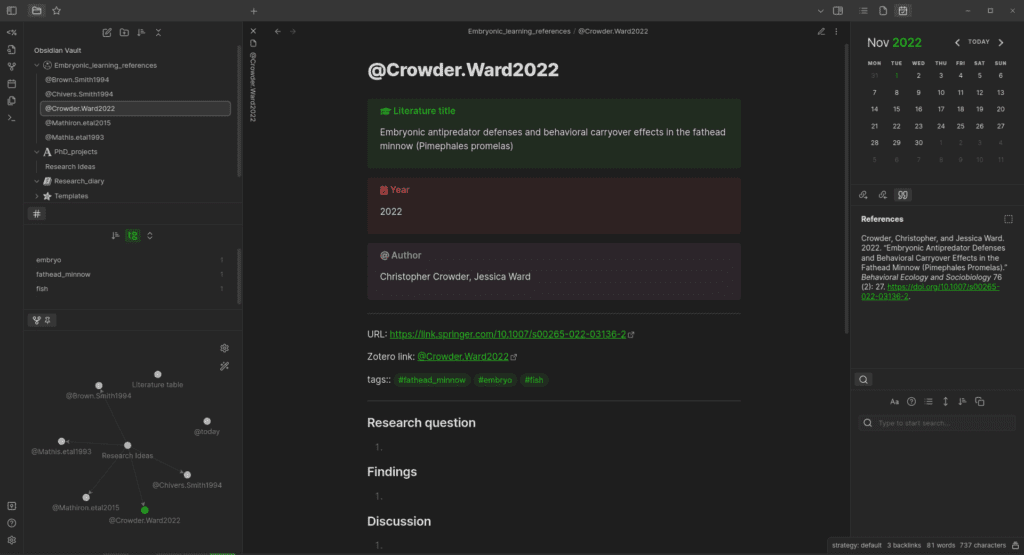
20-Literature/), choose your citation style, and configure your import template. - Set up the import format template. This is the step most guides skim over. The template controls exactly what gets pulled from Zotero into each literature note — title, authors, abstract, your highlights, your Zotero annotations. Here’s a minimal working template:
---
title: "{{title}}"
authors: [{{authors}}]
year: {{date | format("YYYY")}}
doi: "{{DOI}}"
journal: "{{publicationTitle}}"
citekey: "{{citekey}}"
type: literature-note
status: unread
relevance:
tags: []
date-added: {{importDate | format("YYYY-MM-DD")}}
---

# {{title}}

**Authors:** {{authors}}
**Year:** {{date | format("YYYY")}}
**DOI:** [{{DOI}}](https://doi.org/{{DOI}})
**Zotero:** {{pdfZoteroLink}}

## Abstract
{{abstract}}

## My Highlights
{% for annotation in annotations %}
> {{annotation.annotatedText}}
{% if annotation.comment %} — *{{annotation.comment}}*{% endif %}
{% endfor %}

## My Notes
Once configured, you use Obsidian’s command palette: type “Zotero Integration: Import Note” and search for your paper by title or author. It pulls everything — title, abstract, your PDF highlights, your Zotero annotations — into a new note in your literature folder.
Being able to switch between APA, Bluebook, or Nature citation styles at the press of a button is critical when you work across disciplines. I’ve never found another workflow that handles this as gracefully.
— Alexandra Phelan, academic and legal researcher, writing about the Zotero + Obsidian workflow
The ZotLit plugin is an alternative to Zotero Integration that some users prefer — it supports both Zotero 6 and Zotero 7 and has slightly different template syntax. Both work; Zotero Integration has a larger user base and more tutorials as of 2026, so it’s the safer starting point. Backup your Zotero library before experimenting with either plugin.
Literature Note Templates That Support Actual Synthesis
Importing annotations from Zotero is just the raw material. The literature note template needs prompts that push you toward synthesis — not just capture. Most templates online stop at “write your highlights here.” That’s not enough for building a real knowledge base.
After the Zotero-imported section, add this structure to every literature note:
Literature Note — Synthesis Section## Core Argument
[In 2-3 sentences: what is the central claim of this paper?]
## Key Evidence
[What data or methods support the claim? Any weaknesses?]
## What Changes About My Understanding
[This is the important section. How does this paper shift, confirm,
or complicate what you previously thought?]
## Connections
- Links to: [[Concept-Note-A]], [[@RelatedPaper2023]]
- Contradicts: [[@ConflictingPaper2021]]
- Needed for: [[Project-Current-Chapter]]
## Questions / Gaps
[What does this paper leave unanswered?]
[What would you need to know to evaluate this more fully?]
## Quotable
[Any exact quotes worth preserving, with page numbers]The “What Changes About My Understanding” section is the one most people skip and the one that matters most. It forces you to process the paper relative to what you already know, which is where actual learning happens — and where future connections get created.
For experimental researchers, the parallel template for an experiment log is equally important:
Experiment Note Template (for lab-based researchers)---
date: {{date}}
experiment-id: EXP-{{date:YYYYMMDD}}
project: "[[Project-Name]]"
protocol: "[[Protocol-Name]]"
status: in-progress # in-progress | complete | failed | inconclusive
tags: ["#experiments", "#wet-lab"]
---
## Aim & Hypothesis
## Materials & Protocol
[[Protocol link if stored in vault]]
## Procedure (deviations from protocol)
## Results
[Raw data location, key measurements]
## Interpretation
## Follow-up Questions
## Related Papers
The PhD community at the Obsidian Forum has shared several variations of this structure — a biomedical PhD student’s vault framework became one of the most-linked posts in early 2025, and the core structure above draws from that community knowledge.
Dataview as Your Second Librarian
Dataview has been downloaded over 3.7 million times from the Obsidian plugin directory. That number understates its centrality — it’s the plugin that turns Obsidian from a fancy note app into something that can genuinely support a research workflow at scale.
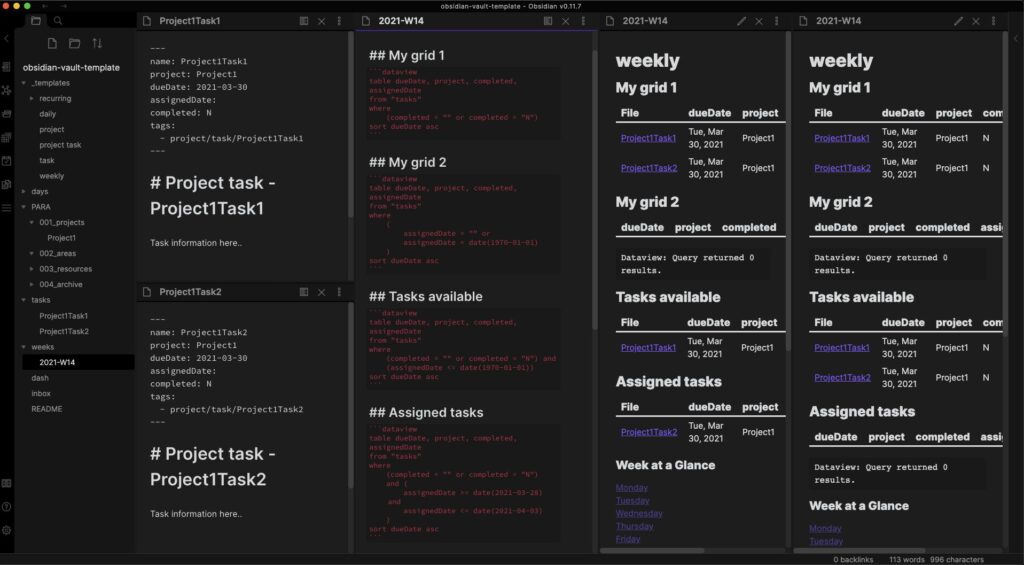
The basic concept: Dataview lets you write queries against your vault’s metadata, similar to SQL but for markdown files. You can filter by tags, front matter fields, dates, file names, and more. Results render as live, auto-updating tables, lists, or calendars inside your notes.
Four Dataview queries every researcher should use
1. Reading pipeline — what needs synthesis:
```dataview
TABLE authors, year, relevance
FROM "20-Literature"
WHERE status = "read" AND status != "synthesized"
SORT relevance DESC, year DESC
```
2. Project literature review — all papers linked to a project:
```dataview
TABLE authors, year, status
FROM "20-Literature"
WHERE contains(tags, "#project/your-project-name")
SORT year DESC
```
3. Unlinked orphan concepts — notes with no backlinks:
```dataview
LIST
FROM "30-Concepts"
WHERE length(file.inlinks) = 0
```
4. Recent experiment log — last 30 days:
```dataview
TABLE experiment-id, status
FROM "40-Experiments"
WHERE date >= date(today) - dur(30 days)
SORT date DESC
```
One power-user technique: combine Dataview with Templater so that your project dashboard auto-populates with linked notes as you add them. Instead of manually maintaining a list of papers relevant to your current chapter, the dashboard does it for you.
Normal Dataview queries are live-rendered but don’t save output to the file — meaning if you publish your vault (via Obsidian Publish, Quartz, or GitHub Pages), readers won’t see query results. The Dataview Serializer plugin solves this by writing query results directly into the markdown, making them visible to external readers and search engines. Worth adding if you share your research notes publicly.
Zettelkasten Without the Dogma
Zettelkasten — German for “slip box” — is the note-taking method developed by sociologist Niklas Luhmann, who used a physical card index to produce an extraordinary volume of academic work. The core idea: write small, atomic notes (one idea per note), give each a unique ID, and link them to related notes, creating a web of interconnected ideas over time.
Every Obsidian tutorial mentions it. Most of them describe it incorrectly for empirical researchers.
The issue: the Zettelkasten method as originally conceived worked for a theorist writing in one continuous stream. For a researcher who moves between reading literature, running experiments, writing grants, and supervising students, strict Zettelkasten atomicity can become a liability. You end up with 40 tiny notes about a single paper instead of one coherent literature note that captures your engagement with that paper.
A more workable approach for most researchers is what might be called “pragmatic Zettelkasten”:
- Keep literature notes as integrated documents — one note per paper, not one note per idea from a paper.
- Create concept notes for ideas that appear across multiple papers. When you notice you’re linking to the same idea from three different literature notes, that idea deserves its own note in
30-Concepts/. - Use typed links explicitly. Don’t just link. Note why you’re linking. “This supports [[Concept-A]]” or “This contradicts [[AuthorYear_Paper]]” is far more useful in 18 months than a bare link.
The central idea behind my vault is to see it as a knowledge graph built out of notes. Each note is a node with a particular type, and typed links semantically connect them. I do not base my setup on Zettelkasten — it simply doesn’t match how I actually work.
— Emile van Krieken, AI researcher, academic Obsidian post, October 2025
The graph-based thinking that underlies Zettelkasten is genuinely valuable. The rigid formalism around atomic note size usually isn’t. Take the principle, adapt the practice.
Maps of Content — The Navigation Layer Your Vault Needs
As your vault grows past a few hundred notes, navigating it by folder and search alone starts to feel like looking for a specific book in a warehouse by reading spines. Maps of Content (MOCs) solve this problem.
An MOC is simply a note that links to many other notes on a theme — a curated overview of a topic area. It’s not a table of contents in the traditional sense. It’s more like a Wikipedia article that links to all the relevant content in your personal knowledge base.
For a researcher, useful MOCs include:
- Topic MOCs:
MOC-Working-Memory.md— links to all literature notes, concept notes, and experiment notes related to working memory research. - Project MOCs:
MOC-Thesis-Chapter-3.md— the central navigation note for a particular writing project, linking to relevant literature, experiments, and draft sections. - Method MOCs:
MOC-Qualitative-Coding.md— links to protocol notes, examples, and literature about a method you use repeatedly.
The key difference between an MOC and a Dataview query: an MOC is curated. You decide what belongs there. A Dataview query is algorithmic — it finds everything matching certain criteria. Both are useful; the MOC is the human judgment layer on top of the automated retrieval.
Keep MOCs in a dedicated 50-MOCs/ folder and link to the relevant MOC from every note that should appear in it. The backlink graph then shows you all notes that belong to each topic area — MOCs essentially work as both entry points and aggregation nodes simultaneously.
The Daily Research Log — Context That Prevents Rediscovery
One of the most underrated Obsidian habits for researchers is maintaining a daily log — not a productivity journal, but a research context note. The distinction matters.
A daily research log captures: what you worked on, what decisions you made and why, what you noticed that seemed important, and what loose threads exist going into tomorrow. It’s the kind of information that is completely obvious in the moment and completely invisible six months later when you’re trying to reconstruct why you took a particular methodological direction.
Daily Research Log Template---
date: {{date}}
tags: ["#daily"]
---
# {{date:dddd, MMMM D}}
## Focus Today
[What's the main thing you're trying to move forward?]
## Work Log
- **09:00** —
## Papers / Sources Engaged
- [[Literature note link]]
## Key Decisions
[Any methodological or analytical decisions made today, with brief rationale]
## Observations / Surprises
[Anything unexpected — experimental anomalies, interesting patterns, tangential ideas]
## Tomorrow
[Open threads to carry forward]
## Gratuitous Thought
[One idea worth developing further, even if unrelated to today's work]The Calendar plugin (by Liam Cain) makes navigating daily notes far easier — it adds a calendar view to your sidebar that lets you click any day to open or create that day’s log. The Rollover plugin automatically copies incomplete tasks from yesterday’s note to today’s, which helps prevent things from falling through the cracks between sessions.
One pattern worth building: at the end of each week, write a brief synthesis note that pulls from the daily logs. What themes emerged? What’s the state of each active project? This weekly review compounds over time — by the end of a PhD or a multi-year research program, you have a detailed intellectual autobiography that makes writing “methods” sections and discussion chapters significantly less painful.
Writing Manuscripts Inside Obsidian (and Exporting Them)
Writing manuscripts directly in Obsidian is genuinely better than writing in Word while keeping notes elsewhere — but only if the citation pipeline works. When it does, the workflow is: write in markdown with citekeys, export to Word or LaTeX via Pandoc, citations auto-formatted in whatever style the journal requires.
The Pandoc pipeline
- Install Pandoc on your system (free, command-line document converter).
- Install the Pandoc Plugin for Obsidian. This adds a command-palette option to export the current note to DOCX, PDF, or HTML.
- In your markdown, cite using the citekey format:
[@Carter2024]or[@Smith2022; @Jones2023]for multiple citations. - Point the Pandoc plugin to your exported
library.bibfrom Zotero + Better BibTeX, and specify your CSL file (for citation style).
The export command:
pandoc manuscript.md \
  -o manuscript.docx \
  --citeproc \
  --bibliography library.bib \
  --csl nature.csl
The result: a Word document with properly formatted in-text citations and a bibliography, generated from your markdown note. Change the --csl flag to switch between APA, Chicago, Nature, or any of the thousands of CSL styles available at zotero.org/styles. This is particularly valuable for researchers who submit to journals across disciplines with different citation requirements.
Obsidian doesn’t support real-time collaboration, which is the legitimate criticism. For co-authored work: write your solo sections in Obsidian, export to Word for the collaborative editing stage (using track changes), then merge back to markdown after. It’s an extra step, but the solo writing quality tends to justify it.
Graph View — What It’s Actually Good For
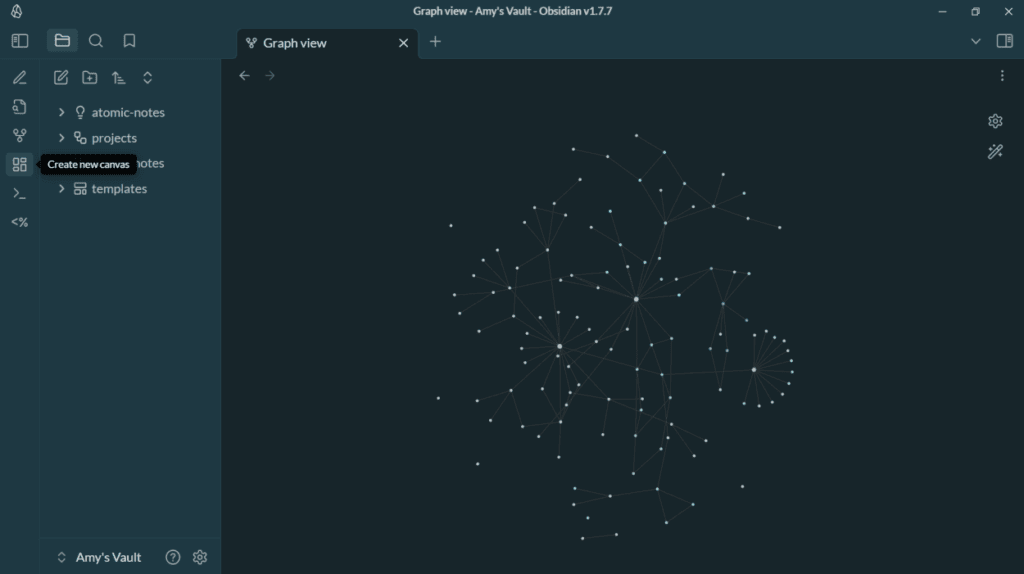
The graph view is what attracts a lot of researchers to Obsidian in the first place. The visual network of interconnected notes is genuinely beautiful — and mostly useless as a navigation tool once you have more than a few hundred notes.
One PKM researcher with 8,000 notes reported that his global graph view had become “unusable (too slow to load)” — a common experience at scale. Sébastien Dubois, who analyzed his own vault in February 2025, noted that the local graph (which shows only the connections immediately around a single note) remained “much more interesting in general” than the full graph.
That’s the real lesson: use the local graph, not the global one.
The local graph (accessible via the panel icon in Obsidian or via a hotkey) shows you the web of connections around whatever note you’re currently reading. This is actually useful for:
- Seeing which papers cite or are cited by the note you’re reviewing
- Discovering unexpected connections between a new note and existing work
- Checking whether a newly created concept note is properly integrated with the rest of the vault
The global graph is worth opening occasionally for a bird’s-eye view of clusters — areas where you’ve done lots of work versus sparse areas that might signal gaps. But don’t build a daily workflow around it.
Filter the graph view (Graph Settings panel) to exclude your daily notes, templates folder, and MOCs from the visualization. What remains is a cleaner picture of your actual knowledge network. Enable node coloring by tag to see clusters visually — notes tagged #concept can be one color, #literature another.
Sync, Backup, and Longevity — The Unsexy Part That Matters Most
Research notes accumulated over years are genuinely irreplaceable. Getting sync and backup right isn’t optional.
Sync options
| Method | Cost | Encryption | Version History | Notes |
|---|---|---|---|---|
| Obsidian Sync | $8/month | End-to-end | 12 months | Easiest, supports all platforms including mobile |
| iCloud Drive | $0–$3/month | At rest | 30 days | Works well on Apple ecosystem; some iOS quirks |
| Git + GitHub | $0 | In transit | Full history | Best version control; requires setup; Obsidian Git plugin automates commits |
| Dropbox / Syncthing | $0–varies | At rest | varies | Reliable; not specifically designed for Obsidian |
The recommendation for most researchers: use Git + GitHub as your primary version control (the Obsidian Git plugin can auto-commit on a schedule), and Obsidian Sync or iCloud for cross-device access. These serve different purposes — version history versus real-time sync — and they don’t conflict.
Why plain text is the future-proof choice
This bears restating: your vault is folders of .md files. If Obsidian stopped existing tomorrow, you’d open them in any text editor, any markdown renderer, any other note app. The work survives the tool. For researchers building a knowledge base meant to outlast a PhD program or a career phase, this is not a minor point.
The “Obsidian 1.8” update in December 2024 added the ability to open external links without leaving the app, making web research slightly more integrated. Obsidian continues active development — check the official roadmap page for current development priorities before making plugin or workflow decisions that depend on upcoming native features.
✓ Folder structure decided and documented in README
✓ YAML front matter template created for each note type
✓ Zotero + Better BibTeX configured and auto-exporting
✓ Zotero Integration plugin connected and tested
✓ Dataview installed and one test query running
✓ Templater installed with templates for: literature note, concept note, daily log, experiment
✓ Sync method chosen and tested across devices
✓ Git repository initialized and auto-commit configured
The Researcher’s Plugin Stack (No Bloat)
There are 2,700+ community plugins. Most researchers need about eight. Here are the ones that earn their place:
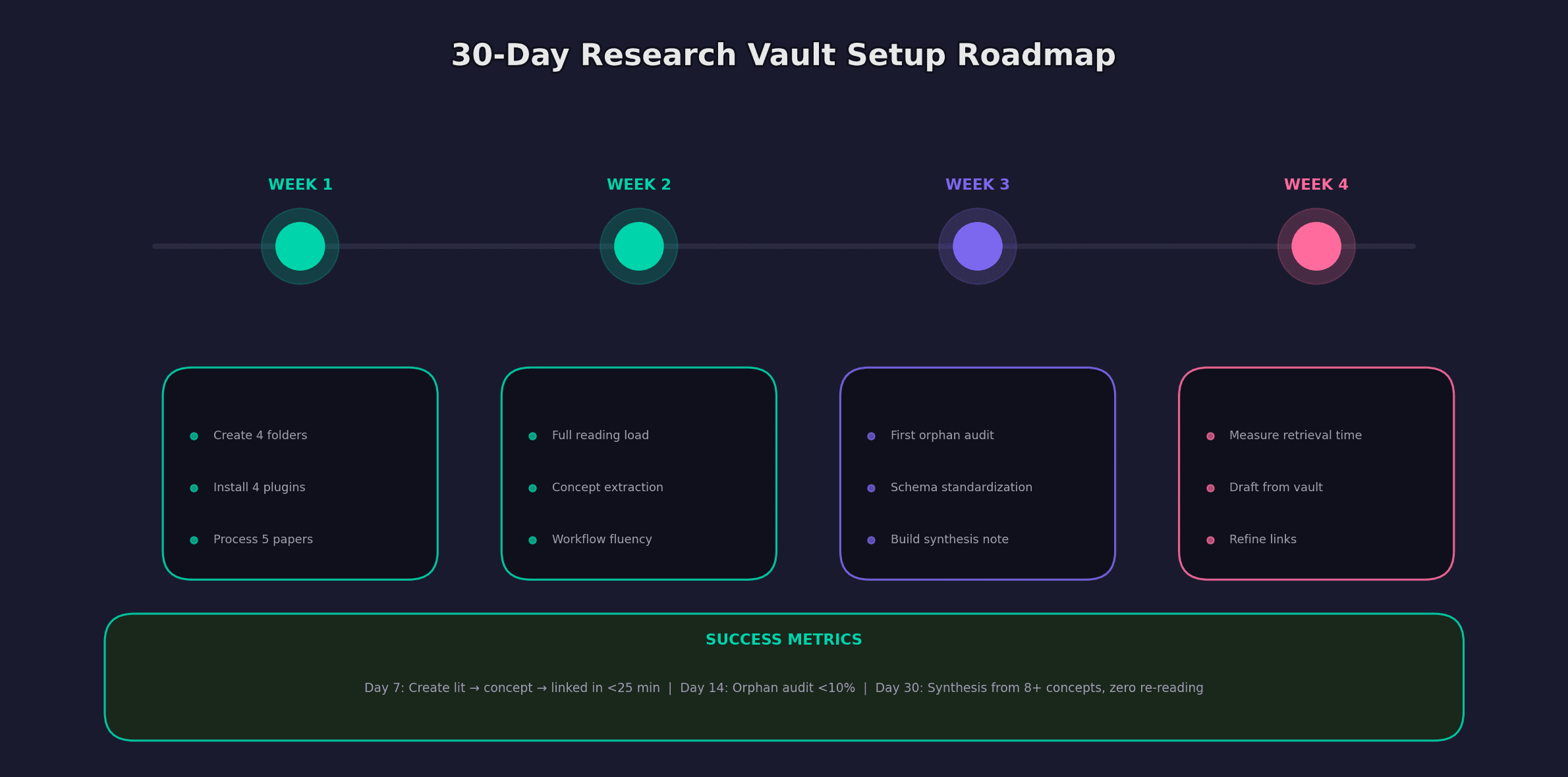
A Realistic Timeline
Worth saying plainly: you won’t get full value from an Obsidian research vault in the first month. The value inflection point for most researchers arrives somewhere between months three and six, when the vault has enough notes and connections that it starts surfacing things you’d forgotten, connecting ideas you hadn’t linked consciously, and making literature reviews feel more like assembly than excavation.
The productivity overhead drops noticeably once the templates are set and the Zotero pipeline is running — the admin part of the workflow compresses significantly. What remains is the thinking: reading, linking, synthesizing, writing. That’s the point.
Start with the structure (Technique 2), get the YAML right (Technique 3), and connect Zotero (Technique 4). Everything else can be layered in later. The worst version of this is spending three weekends perfecting your vault setup before writing a single substantive note. The best version is building the minimum viable structure on a Saturday afternoon and using it on Monday.
A vault with 50 notes feels less useful than a simple folder of documents. A vault with 500 connected notes feels like genuine thinking support.
— Calmevo PKM Guide, 2025