

Notion for Solopreneurs:
Build Your Entire Business OS
A practitioner’s complete playbook for building one unified workspace that replaces your CRM, project tracker, content calendar, finance log, SOP library, and second brain — honestly assessed, with real limitations acknowledged.
Executive Summary
The core problem this guide solves: You’re running a one-person business using five or six disconnected tools — a task manager here, a spreadsheet there, notes in one app, client emails tracked nowhere, content ideas scattered across three apps. Every week you lose real hours just context-switching between them. Notion can consolidate all of this, but only if you set it up correctly. Most guides skip the architecture decisions that actually matter.
- Notion genuinely works as a full Business OS for solopreneurs — it replaced my project tracker, CRM, content calendar, SOP library, and client portal in one workspace.
- Start on the Free plan (unlimited pages and blocks for individuals). Upgrade to Plus ($10/month) when you need custom charts and Slack sync, or Business ($20/month) only if you want Notion AI Agents.
- The five core modules you need to build: Command Center dashboard, Projects + Tasks database, CRM, Content Calendar, and a Finance Tracker. Everything else is optional scaffolding.
- Notion 3.0–3.4 (September 2025 → May 2026) added autonomous AI Agents, Custom Agents running 24/7, and access to GPT-5, Claude Opus, and Gemini 3 inside your workspace.
- Real limitations: Notion struggles with large datasets (10,000+ rows get sluggish), doesn’t replace dedicated accounting software, and the AI features cost a lot more than the headline price suggests.
- Realistic setup timeline: Core system functional in 4–6 hours. Fully tuned and habitual within 3–4 weeks.
- Who should skip it: Anyone who needs advanced CRM pipeline automation, real-time financial reports, or offline-first writing. Better alternatives exist for those specific needs.
- The Real Solopreneur Productivity Problem (With Numbers)
- Why Notion — and Why It’s Not for Everyone
- The Business OS Architecture: Five Core Modules
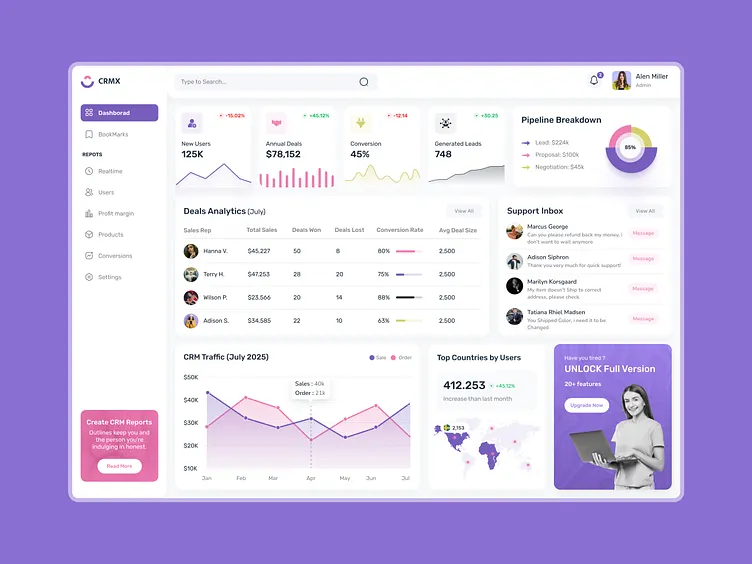
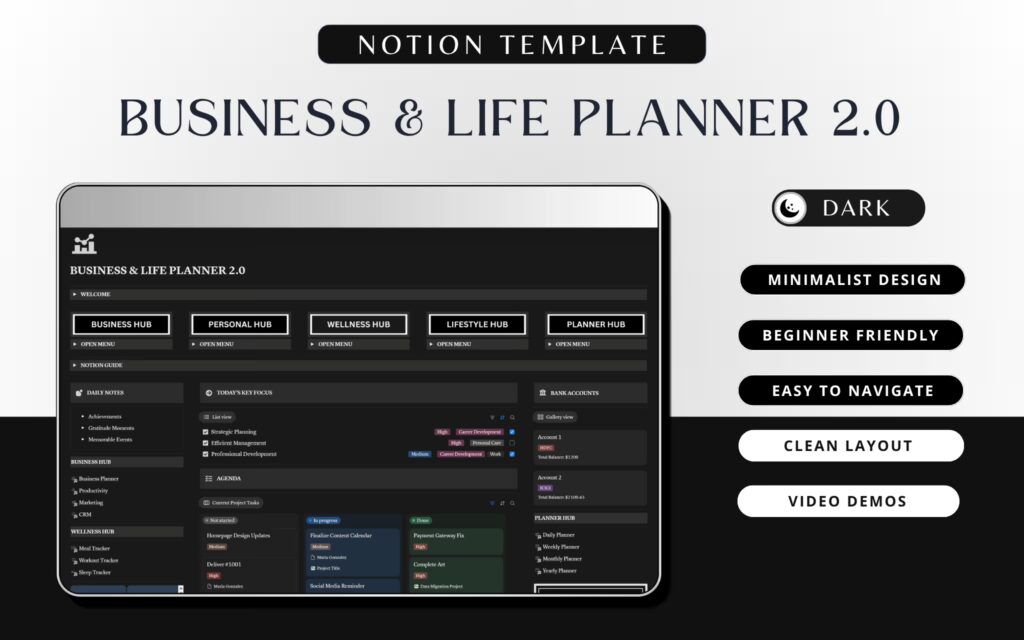
- Module 1: Your Command Center Dashboard
- Module 2: Projects + Tasks System
- Module 3: The Solopreneur CRM
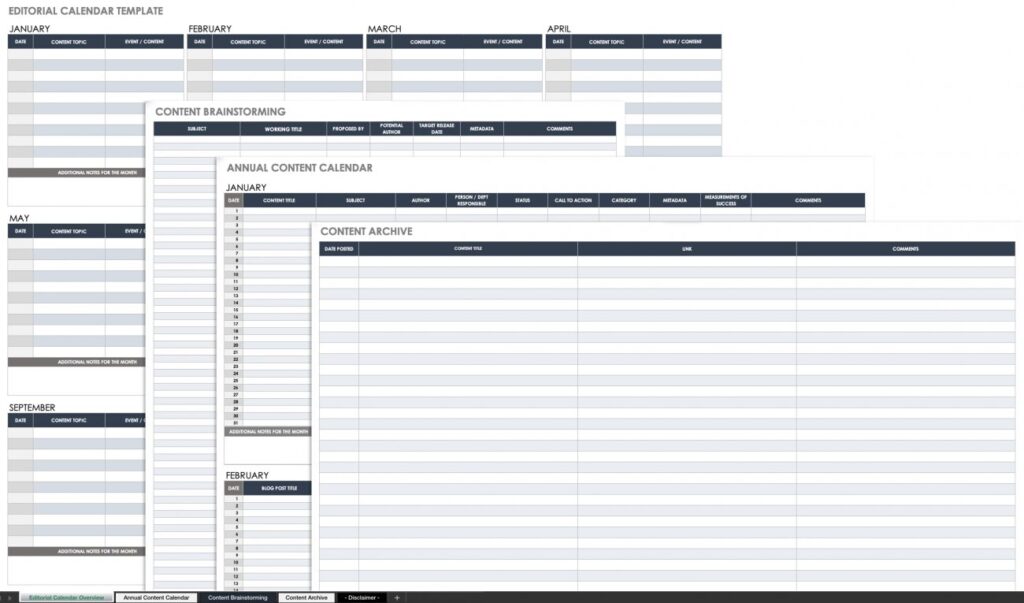
- Module 4: Content Calendar + Idea Bank
- Module 5: Finance Tracker + Revenue Dashboard
- Module 6: SOP Library and Knowledge Base
- Notion AI Agents in 2026: What They Actually Do
- Templates, Tools, and Honest Pricing
- Real Case Studies: Before and After
- The Five Mistakes That Kill Every Notion Setup
- Honest Comparison: Notion vs the Alternatives
- Your 4-Week Setup Plan
- FAQ (15 Questions Answered)
The Real Solopreneur Productivity Problem (With Numbers)
There are now roughly 30 million solopreneurs in the United States alone, accounting for more than 80% of all small businesses, according to the Small Business Administration and Gusto’s longitudinal research. What’s striking about Gusto’s 2025 dataset — drawn from nearly 24,000 actual businesses — is that solopreneurs average $294,000 in revenue in their first year and grow to over $500,000 by year five. After five years, they earn 25% more than comparably skilled employees.
So the money, eventually, can be there. What consistently undermines solopreneurs isn’t their skill, their market, or their ambition. It’s operations. About 41% of solopreneurs cite time management as a top operational challenge — that’s from QuickBooks’ survey research — and the most common cause isn’t laziness. It’s tool fragmentation.
The average ambitious solopreneur in 2025–26 is running: a task manager (Todoist, TickTick, or a whiteboard), a notes app (Apple Notes, Obsidian, Evernote), a spreadsheet for finances, a separate one for client tracking, a project management tool for deliverables, a calendar app, a content scheduler, and some combination of Slack, email, and Notion for comms and docs. That’s six to nine apps — each with its own mental model, each requiring a context switch.
This is where the Business OS concept comes in. Not as a productivity philosophy from a YouTube video, but as a practical engineering decision: reduce the number of systems you maintain from eight to one, and make that one system genuinely functional for every part of your business.
Notion is, as of 2026, the most viable tool for this consolidation. It’s not perfect for every use case — I’ll be specific about where it fails — but no tool with 100 million users and autonomous AI agents built in is a niche curiosity anymore.
Why Notion — and Why It’s Not for Everyone
Let me be direct about what made me commit to Notion after testing ClickUp, Obsidian, Coda, and Airtable as alternatives: it’s the only tool where your project database, client notes, content ideas, SOPs, and financial log can all live in the same workspace and actually talk to each other through linked databases and relational properties. That relational layer is what makes the Business OS concept real rather than aspirational.
Notion also has genuine momentum. It crossed 100 million users by 2026, is adopted by 75% of Fortune 500 companies, and has been growing internationally at a pace that indicates platform staying power rather than bubble dynamics. The September 2025 launch of Notion 3.0 — introducing autonomous AI Agents — was a credible product leap, not a marketing rebrand.
But there are real cases where Notion is the wrong choice, and I’d rather say them plainly than bury them in the conclusion:
Skip Notion as your primary system if: you manage more than 5,000 database rows regularly (performance degrades meaningfully), you need GAAP-compliant accounting (use QuickBooks or Wave for that), you work primarily offline, you’re managing a team of more than 10 people with complex permission needs, or you need Gantt-style project management with resource allocation. For each of these, a specialized tool will serve you better.
That said, for a solopreneur who bills clients, creates content, manages projects, tracks relationships, and needs a place to think — Notion hits a level of versatility that nothing else currently matches.
Who This Guide Is Actually Built For
You need client tracking, proposal templates, project status views, and time logging. The Notion CRM and Projects system handles all of this without requiring a dedicated CRM subscription.
Content calendar, idea database, audience research, brand deal tracker, and income log — Notion keeps the creative and business sides connected in a way that apps like Notion Calendar can’t alone.
SOP library, onboarding checklists, client portal pages, and a repeatable project template system — the core value of Notion for someone selling the same service over and over.
Launch planning, content production pipeline, revenue tracking by product, and customer feedback database. Notion doesn’t replace Gumroad, but it orchestrates everything around it.
The Business OS Architecture: Five Core Modules
The mistake most people make when setting up Notion as a Business OS is starting with a template and trying to customize it. Templates are useful shortcuts, but if you don’t understand the underlying architecture, you end up with a system that looks impressive and breaks the moment your actual workflow doesn’t match what the template designer imagined.
The architecture I’ve found most durable for solopreneurs is a hub-and-spoke model: one Command Center dashboard that surfaces everything, and five core databases that contain the actual data.
The key architectural principle: databases should be relational where it makes your work easier, not everywhere you can link something. I’ve seen Notion setups so over-linked that opening a client record loads five nested database queries. That’s a performance disaster and a cognitive one. Link projects to clients, link content to projects, link invoices to clients. Stop there unless you have a specific reason to go further.
Module 1: Your Command Center Dashboard
Your Command Center is the page you open Notion to every morning. It is not a database — it’s a canvas that surfaces information from your databases using linked views and formulas. Think of it as a cockpit, not a filing cabinet.
A functional Command Center for a solopreneur needs exactly five sections:
What Your Command Center Should Show
| Section | What It Shows | Database Source | View Type |
|---|---|---|---|
| Today’s Priorities | Tasks due today or flagged as today’s focus | Tasks DB | Filtered list, sorted by priority |
| Active Projects | Projects with status = In Progress | Projects DB | Board or gallery, max 8 items |
| Revenue This Month | Sum of invoices marked as Paid in current month | Finance DB | Filtered table with rollup formula |
| Content Pipeline | Content pieces in Draft or Scheduled | Content Calendar DB | Board by status |
| Quick Capture | Inbox for any thought, task, or idea to process later | Tasks or separate Inbox DB | Simple list input |
The most critical discipline with the Command Center: resist the urge to add more. I spent three months slowly adding sections to my dashboard until it took 8 seconds to load and contained 14 database views. I tore it back to five sections and my daily check-in dropped from 12 minutes of distracted scrolling to 90 seconds of actual orientation.
Your Command Center should answer three questions in under two minutes: What must I do today? Where are my active projects? Am I on track financially this month? Anything beyond that belongs in the individual database, not the dashboard.
Module 2: Projects + Tasks System
This is the most-used module in any solopreneur’s Notion OS, and the one where people most often over-engineer things early. Here’s the structure that actually holds up over time:
The Two-Database Approach
Use two linked databases, not one: a Projects database (one row per client engagement or initiative) and a Tasks database (one row per individual action). Link tasks to projects via a relation property. This separation lets you view all tasks for a specific project while also seeing all your tasks across all projects in a single prioritized list.
Name → Title (project name, e.g. "Website Redesign — Acme Corp")Client → Relation → CRM Contacts DBStatus → Select: Proposal / Active / On Hold / Complete / ArchivedStart Date → DateDeadline → DateRevenue → Number (project contract value)Tasks → Relation → Tasks DB (reverse relation)Task Count → Rollup (count tasks where Status ≠ Done)Priority → Select: P1 / P2 / P3
Name → Title (specific action, starts with a verb)Project → Relation → Projects DBStatus → Select: Inbox / This Week / Today / Doing / Done / BlockedDue Date → DateEstimate → Select: 15 min / 30 min / 1 hr / 2 hr / Half DayContext → Multi-select: @computer / @call / @waiting / @errandsEnergy → Select: Deep / Shallow / Admin
The Status field in Tasks is where most systems break down. People use three statuses (To Do, Doing, Done) and then wonder why their “To Do” list becomes a 200-item parking lot. The six-status system above — Inbox, This Week, Today, Doing, Done, Blocked — forces a daily triage that keeps your active task list small and honest.
Views You Actually Need
Four views cover 95% of how you’ll use the Tasks database:
- Today view: Filter Status = Today or Doing. Sorted by Energy (Deep first).
- This Week view: Filter Status = This Week or Today. Grouped by Project.
- By Project view: Filter by a specific Project relation. Grouped by Status.
- Inbox view: Filter Status = Inbox. This is your weekly triage target — empty it every Monday.
Module 3: The Solopreneur CRM
A CRM in Notion isn’t HubSpot. Don’t expect it to be. But for a solopreneur managing 5–30 client relationships, it’s more than sufficient — and the advantage is that your client records are physically in the same workspace as your project notes, proposals, and invoices.
Database Structure
You need two databases here: Contacts and Companies (even if you primarily deal with individuals, keeping a Companies table lets you group related contacts and track relationships properly). Link them to each other, and link both to Projects and Finance.
| Contacts DB Property | Type | Purpose |
|---|---|---|
| Name | Title | Full name |
| Company | Relation → Companies | Links to company record |
| Role / Title | Text | Their position |
| Primary contact | ||
| Lead Source | Select | Referral / Inbound / Outreach / Conference |
| Stage | Select | Lead → Prospect → Active Client → Past Client → Partner |
| Last Contact | Date | Updated manually each interaction |
| Next Follow-Up | Date | Filtered in dashboard view |
| Projects | Relation → Projects | Linked project records |
| Total Revenue | Rollup | Sum of paid invoices via Projects |
| Notes | Text | Running log of calls, emails, context |
The feature that makes this genuinely useful rather than a fancy spreadsheet: the Kanban view grouped by Stage, which gives you a visual pipeline with a drag-and-drop interface for moving contacts through your funnel. Set a filter so you only see active leads and clients, not the full archive, and the cognitive load stays manageable.
The CRM only works if you update Last Contact within 24 hours of any interaction, and actually set a Next Follow-Up date. I know this is obvious. Most people still don’t do it. Consider a weekly 15-minute CRM review — every Monday, open the Contacts view filtered to “Next Follow-Up is this week,” and process each one. Without this ritual, the CRM becomes a graveyard of stale records within 60 days.
Module 4: Content Calendar + Idea Bank
If you create any form of content — newsletters, social posts, YouTube videos, podcast episodes, blog articles — you need a Content Calendar in your Notion OS. Not as a luxury, but because unplanned content creation is one of the most consistent time sinks for solopreneurs, and a good system turns it from reactive scrambling into a predictable production line.
The Two-Stage Architecture
The Content Calendar database works best when it has a companion Ideas Database. Ideas are captured freely and without judgment. When an idea is worth developing, you promote it to the Content Calendar with a target platform, format, and publication date. This separation prevents your active production queue from becoming polluted with half-formed thoughts.
| Property | Type | Values |
|---|---|---|
| Title | Title | Working title (refined before publishing) |
| Status | Select | Idea → Outline → Drafting → Review → Scheduled → Published → Repurposing |
| Platform | Multi-select | Newsletter / LinkedIn / Twitter/X / YouTube / Blog / Podcast |
| Format | Select | Short-form / Long-form / Thread / Video / Audio / Email |
| Publish Date | Date | Target publication date |
| Pillar Topic | Select | Your 3–5 content pillars |
| Project Link | Relation | Linked project (for sponsored or client content) |
| CTA | Select | Newsletter / Product / Discovery call / None |
| Performance | Number | Manual entry: views, opens, clicks (post-publish) |
The Calendar view (grouped by Publish Date) is your primary navigation here. The Board view (grouped by Status) is what you check during your weekly content planning session. Use a filter on the Board that only shows the current and next two weeks — anything beyond that is too speculative to manage as “active.”
Module 5: Finance Tracker + Revenue Dashboard
This is the module with the clearest limitation that I want to state upfront: Notion is not an accounting system. It can’t connect directly to your bank, doesn’t calculate VAT automatically, and shouldn’t be used for tax filing. What it can do is give you a running picture of your business finances that’s accurate enough to make good decisions in real-time without waiting for your accountant’s quarterly report.
What to Track (and What to Outsource)
Track in Notion: invoices (status, amounts, client, date), revenue by month and project, major expenses by category, and a simple month-by-month P&L. Outsource to actual accounting software: VAT calculations, payroll, tax preparation, and legal compliance. This is not optional; I’ve watched solopreneurs try to run their full accounting in Notion and regret it during tax season.
| Property | Type | Notes |
|---|---|---|
| Invoice # | Title | Auto-format: INV-2026-001 |
| Client | Relation → Contacts | Links to CRM record |
| Project | Relation → Projects | Links deliverable |
| Amount | Number (currency) | Gross invoice value |
| Status | Select | Draft / Sent / Overdue / Paid / Cancelled |
| Issue Date | Date | Date sent to client |
| Due Date | Date | Payment due; filter for Overdue dashboard |
| Paid Date | Date | Actual receipt; used for monthly revenue rollups |
| Payment Method | Select | Bank / Stripe / PayPal / Wise / Crypto |
| Category | Select | Consulting / Retainer / Product / Affiliate |
The powerful part comes from a companion Monthly Revenue view that groups invoices by the month of their Paid Date and shows a sum rollup. This gives you a live revenue dashboard without touching a spreadsheet. Pair it with an Expenses database (same structure, minus client/project links) and you have a real-time P&L approximation.
Module 6: SOP Library and Knowledge Base
Standard Operating Procedures are the part of a Business OS that most solopreneurs skip initially and desperately wish they’d built from day one the moment they try to hire a contractor, take a vacation, or recover from illness while their business still needs to run.
In Notion, your SOP Library is a database where each row is a process document. Unlike the other modules, this one is primarily document-centric rather than database-centric — the value is in the content of each SOP page, not the metadata around it.
SOP Page Template Structure
📋 [Process Name]Last Updated: [Date]Owner: [Your name or contractor role]Frequency: [Daily / Weekly / Per Client / Ad Hoc]Time Required: [Estimated duration]PURPOSEOne sentence: what does this process accomplish?WHEN TO RUN THISClear trigger condition (e.g., "When a new client signs a contract")TOOLS REQUIRED- [Tool 1 + login source]- [Tool 2 + relevant account]STEP-BY-STEP PROCESS1. [Step with enough detail that someone new could follow it]2. [Screenshots or screen recordings embedded inline]3. ...COMMON MISTAKES / WHAT TO WATCH FOR- [Failure mode 1]DONE WHENClear success criteria.
The non-obvious value of building SOPs in Notion rather than Google Docs is that you can link each SOP to the relevant project template, client record, or task. When you create a new client project from your template, the relevant SOPs are one click away from the project page rather than buried in a folder structure.
Notion AI Agents in 2026: What They Actually Do
Notion 3.0 launched in September 2025 with autonomous AI Agents — a genuinely significant upgrade, not a marketing rebrand. By version 3.4 (current as of May 2026), the agent capabilities have expanded considerably. Here’s an honest assessment of what works and what doesn’t for solopreneurs specifically.
“We can now instantly spin up ready-to-use systems that used to take hours of busywork. Then we use those Notion Agents to power whole new workflows at scale.”
— Ben Levick, Head of AI & Ops at Ramp, on Notion 3.0 Agents (notion.com/releases/2025-09-18)
What Notion AI Agents Can Do (Tested)
| Capability | Usefulness for Solopreneurs | Actual Quality | Plan Required |
|---|---|---|---|
| Personal Agent (20-min autonomous tasks) | Draft proposals from templates + meeting notes | ★★★★☆ | Business ($20/mo) |
| Custom Agents (24/7 scheduled) | Weekly status digest, inbox triage | ★★★★☆ | Business + credits |
| AI Meeting Notes | Auto-transcribe and extract action items | ★★★★☆ | Business |
| Q&A on your workspace | Ask about past projects, find context fast | ★★★☆☆ | Business |
| AI writing assist | Polish proposals, summarize meeting notes | ★★★☆☆ | Free (limited trial) |
| Database bulk updates | Update 200 task statuses at once | ★★★★★ | Business |
| Multi-model AI (GPT-5, Claude, Gemini) | Choose best model per task type | ★★★★☆ | Business |
The AI features that make Notion genuinely agentic require the Business plan at $20/user/month (billed annually). Custom Agents launched in February 2026 and use Notion Credits after May 4, 2026, available as an add-on. The Free and Plus plans get only a trial of ~20 AI responses. Don’t build your workflow around AI features before checking whether you’re on the right plan.
The most practical Notion AI Agent workflow I’ve found for solopreneurs: give your personal Agent an instructions page that describes your business, your clients, your typical deliverables, and your voice. Then ask it to draft client proposals using a specific template + meeting notes from a specific call. The output quality, when your workspace is well-structured, is genuinely usable — not publish-ready, but 70–80% of the way there. That’s real time saved.
Custom Agents are more interesting for scaled workflows. One example from Notion’s February 2026 release notes: an agent that connects to Slack, pulls new client requests from a specific channel, creates a project page in Notion, assigns it to the right template, and sends a confirmation — all triggered automatically. For a solopreneur running a productized service, this eliminates a 20-minute onboarding task for every new client.
Templates, Tools, and Honest Pricing
Notion Pricing for Solopreneurs (May 2026)
- Unlimited pages + blocks (personal)
- 10 guest collaborators
- 7-day page history
- 5MB file uploads
- ~20 AI responses (trial)
- Good for: Starting out, testing the OS
- Unlimited file uploads
- 30-day page history
- Custom charts + dashboards
- Slack + Google Drive sync
- 100 guest collaborators
- Good for: Full Business OS without AI
- Full Notion AI access
- Personal + Custom AI Agents
- AI Meeting Notes
- Advanced integrations (GitHub, Asana)
- Row-level permissions
- Good for: AI-powered automation
All prices billed annually. Monthly billing adds roughly 20–25%.
Recommended Templates
Rather than listing every template in the Notion marketplace, I’ll point you to the ones that are actually well-documented and have active communities:
- Thomas Frank’s CRM template — Free. Widely considered the best starting point for a Notion CRM. Links contacts, companies, and deals properly. Available at thomasjfrank.com.
- Notion’s official Freelancer OS template — Free. Includes project tracking, CRM basics, time tracker, and invoice log. A solid starting point if you want an opinionated system rather than building from scratch.
- Marie Poulin’s Life OS / Notion Mastery — Paid ($200–300 range). Best for solopreneurs who want a deeply integrated personal + business system. Exceptional documentation.
- Hashim’s Ultimate Business OS — $39 (solopreneur version). One of the more complete business-specific templates available. Over 5,000+ sales, which suggests it’s genuinely being used rather than just purchased.
If you’re starting from scratch: use Notion’s free Freelancer OS template as a scaffold, then customize each module to match the architecture described in this guide. Trying to build everything from blank pages is slower than adapting a working template to your needs.
Real Case Studies: Before and After
Situation (before Notion OS): Running six concurrent client projects across Trello (project management), Google Sheets (time tracking + invoices), a physical notebook (meeting notes), Figma comments (feedback), and Apple Notes (ideas). Weekly setup overhead before client work began: approximately 45 minutes of checking and updating across these systems.
Migration process: Built the Projects + Tasks module first (week 1), migrated client records to the CRM (week 2), moved invoicing to Notion Finance Tracker (week 3), retired Trello and the spreadsheets (week 4).
Honest limitations encountered: The invoicing workflow requires manual entry for every payment — there’s no bank sync. The consultant ended up keeping FreshBooks for official invoicing and using Notion’s Finance Tracker as a secondary visibility layer, which is actually a reasonable approach. Notion did not fully replace accounting software.
Situation (before): Content calendar in Notion (already using it), but product development, launch planning, affiliate tracking, and subscriber research all in scattered Google Docs and spreadsheets. Two hours per week spent searching for documents.
What was built: Integrated the existing content calendar with a new Projects database (one row per product launch), added CRM tracking for affiliate partners and collaborators, built a launch checklist template that generates from a master SOP, and created a revenue dashboard tracking newsletter ad revenue, product sales, and affiliate commissions separately.
What worked particularly well: The connection between the Content Calendar and Projects database meant that every piece of content supporting a product launch was linked to the launch project. Searching “what did I publish about [product name]” returns everything relevant immediately, across all formats.
What still doesn’t work: Notion doesn’t integrate directly with Beehiiv or ConvertKit for subscriber analytics. Performance numbers still have to be pulled manually and entered into the content database. A gap worth noting.
The Five Mistakes That Kill Every Notion Setup
I’ve helped a number of solopreneurs set up Notion systems, and the same failure patterns appear with enough regularity that they deserve direct treatment:
Mistake 1: Building the Whole System Before Using Any of It
The temptation is to design the perfect system on paper, build all five modules, then start using it. Reality: you’ll spend two weekends building something that doesn’t match how you actually work, and you’ll abandon it by week three. Build one module at a time. Start with Tasks. Use it for two weeks. Then add Projects. Then CRM. Iteration beats architecture.
Mistake 2: Too Many Database Relations
Notion’s relational database feature is its most powerful and most abused feature. Every relation adds loading time and cognitive complexity. I’ve seen workspaces with 12-way linked databases that took 15 seconds to load on a modern laptop. Use relations only where they create a workflow you’ll actually use, not everywhere they’re theoretically logical.
Mistake 3: Treating Notion as a Filing System Rather Than a Work System
Notion is not a better Dropbox. If you’re using it primarily to store documents and reference material, you’re getting 10% of its value. The power comes from databases with properties, filters, and views that surface the right information at the right time. If your pages are mostly nested folders of plain documents, you’ve built an expensive file drawer.
Mistake 4: Never Archiving or Pruning
Notion performance degrades with large databases. Monthly maintenance — archiving completed projects, marking old contacts as inactive, moving done tasks to an Archive view — keeps your active databases small and fast. Set a recurring monthly task: “Notion maintenance, 20 minutes.” Without it, your workspace becomes a slow, cluttered mess within a year.
Mistake 5: Expecting AI to Fix a Poorly Structured Workspace
Notion AI Agents work best when your workspace has clear, consistent data. If your task names are vague (“meeting prep,” “work on thing”), your client records are incomplete, and your databases have 30 different status values from six iterations, the AI agent has nothing useful to work with. Good AI output in Notion is downstream of good workspace hygiene. The agent is not a substitute for system design.
Honest Comparison: Notion vs the Alternatives
| Tool | Best For | Weaknesses vs Notion | Price/mo | Use Instead If… |
|---|---|---|---|---|
| Notion | All-in-one Business OS, knowledge management | Performance with large DBs; no bank sync; AI costs extra | Free–$20 | — |
| ClickUp | Pure project/task management with time tracking | Terrible docs/notes; overwhelming UI; poor knowledge base | Free–$12 | You need granular time tracking or resource allocation |
| Obsidian | Personal knowledge base, writing, offline-first | No native databases; complex sync; steeper learning curve | Free–$8 | You need offline-first, Markdown purity, or complex note linking |
| Coda | Complex automation, form-based workflows | Smaller community; fewer templates; higher cost at scale | Free–$36 | You need complex formula automation or form-triggered workflows |
| Airtable | Database-heavy workflows, large datasets | Poor document/notes experience; higher cost; no OS feel | Free–$24 | You’re managing 10,000+ records or need industrial-strength automation |
| Linear + Notion | Software/product teams with complex issue tracking | Two tools, two systems, two costs | $8–20 + Notion | You build software and need real sprint management |
- 6–9 apps to manage daily
- Context switching between tools
- Client history scattered across emails, docs, spreadsheets
- No single source of truth for revenue
- SOPs in Google Docs with broken links
- 30–60 min/week finding information
- $80–150/mo in tool subscriptions
- New contractor onboarding: 2–3 hours
- 1 workspace for 90% of business operations
- Client record links to all related projects + invoices
- Revenue dashboard updated with each invoice payment
- SOPs linked from project templates and client records
- Weekly context review: 10–15 minutes
- $10–20/mo (Notion Plus or Business)
- New contractor onboarding: share one Notion page
- AI Agent drafts proposals from templates + meeting notes
Your 4-Week Setup Plan
This timeline assumes you’re starting from scratch with a new Notion workspace. If you already have a partial Notion setup, adjust accordingly — but be honest about whether your existing structure matches the architecture described here or just accumulated organically.
| Week | Focus | Time Investment | Milestone |
|---|---|---|---|
| Week 1 | Command Center + Tasks database. Start using tasks daily. Don’t touch anything else. | 3–4 hours setup | Manage all tasks in Notion for 7 days straight |
| Week 2 | Projects database + CRM basics. Import existing clients. Link to projects. | 4–5 hours | All active client records in Notion CRM |
| Week 3 | Finance Tracker + Content Calendar. Enter last 3 months of invoices. | 3–4 hours | Revenue dashboard shows accurate month-to-date number |
| Week 4 | SOP Library — document your top 5 most-repeated processes. Archive old tools. | 4–6 hours | 5 SOPs written; old tools cancelled or reduced |
After four weeks, plan a half-day system review. What’s working? What do you avoid opening? What’s missing? The Business OS is not a one-time build — it’s a living system that should evolve with your business. The review habit is what separates people whose Notion workspace is genuinely useful after six months from those who abandon it and go back to sticky notes.
Frequently Asked Questions
Is the Notion free plan sufficient to build a full Business OS?
For most solopreneurs starting out, yes. The free plan includes unlimited pages and blocks for individuals, which is enough to build all five core modules. The main limitations you’ll hit are the 5MB file upload cap (annoying if you store client deliverables in Notion), 7-day page history, and the absence of charts. When you need charts, Slack sync, or unlimited file uploads, upgrade to Plus at $10/month. You won’t need the Business plan unless you want Notion AI Agents.
How long does it realistically take to set up a functional Business OS?
A functional core system — Command Center, Tasks, Projects, and CRM — takes most people 6–10 hours of focused work spread over two to three weeks. A fully refined system with SOPs, Finance Tracker, Content Calendar, and solid data takes 3–5 weeks of incremental work. Don’t try to build everything in one weekend; you’ll build the wrong things and won’t have the real-world usage data to know what you actually need.
Can Notion replace my accounting software?
No, and you shouldn’t try. Notion can give you a running revenue picture, invoice tracking, and expense categorization — useful for day-to-day decisions. It cannot connect to your bank, calculate VAT or sales tax automatically, prepare tax-ready financial statements, or handle payroll. Keep dedicated accounting software (Wave, FreshBooks, QuickBooks) for that. Notion complements your accountant; it doesn’t replace them.
Should I use a pre-built template or build my own system?
Use a template as a scaffold, not a final product. The best approach: download a well-reviewed template (Thomas Frank’s CRM, or Notion’s official Freelancer OS), spend time understanding the architecture, then strip it back to only the parts that match your actual workflow. Customizing an existing template is faster than starting from blank, but treating a template as a finished product is how you end up with a system that works for someone else’s business, not yours.
Is Notion AI worth the Business plan price ($20/month) for solopreneurs?
It depends on how you work. If you write a lot of proposals, meeting summaries, or content briefs — and your workspace is well-structured — the Personal Agent feature alone can save 2–4 hours per week, which makes $20/month straightforward ROI. If you primarily use Notion for task management and reference storage, the AI features won’t change your workflow meaningfully. Start on Free or Plus, get genuinely fluent with the core system, then evaluate AI.
How does Notion handle performance with large workspaces?
This is a legitimate limitation. Databases with more than approximately 2,000–5,000 rows begin to show loading delays, especially with complex filters or multiple rollup properties. Notion has improved performance substantially in 2025–2026, but it’s still not designed for industrial-scale data management. For a typical solopreneur workspace (a few hundred clients, projects, and tasks), performance is not a problem. If you’re managing tens of thousands of records, Airtable is the better choice.
Can I use Notion offline?
Partially. The desktop app caches recently accessed pages for offline viewing and limited editing. Changes sync when you reconnect. However, Notion is fundamentally a cloud-first application — offline capability is limited and inconsistent. If you frequently work without internet access (long flights, rural areas), Obsidian is a better choice for note-taking and knowledge management, though it lacks Notion’s database capabilities.
What’s the biggest mistake solopreneurs make with Notion?
Building the entire system before using any of it. The second-biggest mistake is adding too many database relations in an attempt to make everything interconnected. Both of these lead to systems that look impressive in screenshots and are unusable in practice. Build one module, use it daily for two weeks, then add the next. That iteration cadence is what produces a system that actually fits how you work.
How does Notion compare to ClickUp for solopreneurs specifically?
ClickUp is better at pure project and task management — more views, more granular time tracking, better native reporting. Notion is better at everything else: note-taking, client records, knowledge base, content calendar, SOPs, and bringing these together in one workspace. For a solopreneur who needs a complete Business OS rather than just a task manager, Notion wins. For someone whose primary need is managing complex projects with detailed time tracking and team coordination, ClickUp is the stronger choice.
Do I need to know how to code or build databases to use Notion effectively?
No coding required. Notion’s database builder is visual and uses a property-based system that’s closer to Airtable than a traditional database. The formulas in Notion use a syntax similar to spreadsheet formulas, and you only need the most basic ones (IF, DATEADD, SUM rollups) to build the systems described in this guide. The steepest part of the learning curve is understanding the linked database and relation concept — which takes most people about two to three hours of hands-on practice to internalize.
What’s the best way to handle client-facing materials in Notion?
Use Notion’s “Share to web” or guest access feature to create client-facing views. You can publish a specific project page with progress updates, deliverables, and feedback notes — visible to your client via a link — while keeping your internal notes, pricing, and other clients completely private. This works well for project updates. For formal documents like contracts and proposals, generate them in Notion and export to PDF for sending, rather than sharing a raw Notion page.
How do I migrate from another tool (Trello, Asana, Notion old workspace) to a new OS?
Don’t try to import everything at once. Notion has basic import tools for CSV, Trello boards, and some other formats, but the structure never maps perfectly. The practical approach: export your old data to CSV, build your new Notion databases first, then import only active items (current projects, active clients, open tasks). Archive historical data in your old tool or in a separate Notion database rather than trying to migrate it into your live OS. The migration itself should take one weekend, not two months.
Can Notion integrate with my other tools (Zapier, Slack, Gmail, etc.)?
Yes. Notion has a public API and native integrations with Slack and Google Drive on the Plus plan and above. Via Zapier or Make (formerly Integromat), you can connect Notion to hundreds of other apps — automatically creating a task from a Gmail label, adding a new row when a form is submitted, or sending a Slack message when a project status changes. The Notion Agent (Business plan) can also connect to Slack, Gmail via Notion Mail, Linear, Figma, and HubSpot via MCP. The integration ecosystem has expanded significantly in 2025–2026.
How often should I review and update my Notion Business OS?
Three rhythms work well: a daily check-in (2–5 minutes, Command Center only), a weekly review (30–45 minutes, CRM follow-ups, inbox triage, project status updates, content planning), and a monthly maintenance session (20–30 minutes, archive completed items, prune stale data, evaluate what’s working). The monthly maintenance is the one most people skip and then wonder why their workspace feels heavy and slow after six months.
What’s a realistic expectation for how much time Notion will save me?
Based on the cases described above and broader user reports: most solopreneurs recover 30–90 minutes per week from reduced context-switching and information-finding once the system is running smoothly (typically 4–6 weeks in). The bigger gain is often qualitative — fewer things falling through the cracks, clearer revenue visibility, less anxiety about whether tasks are tracked. Time savings compound over months, not days, which is why the first month often feels like net negative time investment before it pays off.
Final Thoughts
Running a one-person business is genuinely hard in a way that most productivity content underplays. You’re the only person who sees the whole picture — every client relationship, every unpaid invoice, every deadline, every marketing idea. When that picture lives in six different apps, the cognitive overhead of maintaining it is real and cumulative. It adds up to hours per week that could be client work, creative work, or rest.
A Notion Business OS doesn’t make the complexity go away. It gives it a home — one structured, searchable, interconnected home that you can open each morning and actually orient yourself from, rather than starting each day by reconstructing context from scattered tabs.
The approach that works: build incrementally, start with the module that solves your most immediate pain, use it daily before adding the next one, and review the system honestly every month. The Business OS is not a decoration. It’s infrastructure. Treat it like infrastructure.
If you invest the 20–30 hours to build a proper system and the discipline to maintain it, you’ll have a tool that grows with your business for years. That’s rare. Most productivity investments pay off for a week. A well-built Notion OS pays off for the life of your business.
Last Updated: May 25, 2026 | Changelog: Added Notion 3.3–3.4 Custom Agents section; updated pricing table to reflect May 2026 credit model; expanded FAQ from 10 to 15 questions; added Creator case study. | Sources: Gusto (gusto.com/resources/gusto-insights), Notion Official Releases (notion.com/releases), Wikipedia Notion entry, QuickBooks Solopreneur Survey 2025, Notion Statistics via SQ Magazine and Fueler.io.
Related Guides & Deep Dives
Notion for Solopreneurs:
Build Your Entire Business OS
A practitioner’s complete playbook for building one unified workspace that replaces your CRM, project tracker, content calendar, finance log, SOP library, and second brain — honestly assessed, with real limitations acknowledged.
Executive Summary
The core problem this guide solves: You’re running a one-person business using five or six disconnected tools — a task manager here, a spreadsheet there, notes in one app, client emails tracked nowhere, content ideas scattered across three apps. Every week you lose real hours just context-switching between them. Notion can consolidate all of this, but only if you set it up correctly. Most guides skip the architecture decisions that actually matter.
- Notion genuinely works as a full Business OS for solopreneurs — it replaced my project tracker, CRM, content calendar, SOP library, and client portal in one workspace.
- Start on the Free plan (unlimited pages and blocks for individuals). Upgrade to Plus ($10/month) when you need custom charts and Slack sync, or Business ($20/month) only if you want Notion AI Agents.
- The five core modules you need to build: Command Center dashboard, Projects + Tasks database, CRM, Content Calendar, and a Finance Tracker. Everything else is optional scaffolding.
- Notion 3.0–3.4 (September 2025 → May 2026) added autonomous AI Agents, Custom Agents running 24/7, and access to GPT-5, Claude Opus, and Gemini 3 inside your workspace.
- Real limitations: Notion struggles with large datasets (10,000+ rows get sluggish), doesn’t replace dedicated accounting software, and the AI features cost a lot more than the headline price suggests.
- Realistic setup timeline: Core system functional in 4–6 hours. Fully tuned and habitual within 3–4 weeks.
- Who should skip it: Anyone who needs advanced CRM pipeline automation, real-time financial reports, or offline-first writing. Better alternatives exist for those specific needs.
- The Real Solopreneur Productivity Problem (With Numbers)
- Why Notion — and Why It’s Not for Everyone
- The Business OS Architecture: Five Core Modules
- Module 1: Your Command Center Dashboard
- Module 2: Projects + Tasks System
- Module 3: The Solopreneur CRM
- Module 4: Content Calendar + Idea Bank
- Module 5: Finance Tracker + Revenue Dashboard
- Module 6: SOP Library and Knowledge Base
- Notion AI Agents in 2026: What They Actually Do
- Templates, Tools, and Honest Pricing
- Real Case Studies: Before and After
- The Five Mistakes That Kill Every Notion Setup
- Honest Comparison: Notion vs the Alternatives
- Your 4-Week Setup Plan
- FAQ (15 Questions Answered)
The Real Solopreneur Productivity Problem (With Numbers)
There are now roughly 30 million solopreneurs in the United States alone, accounting for more than 80% of all small businesses, according to the Small Business Administration and Gusto’s longitudinal research. What’s striking about Gusto’s 2025 dataset — drawn from nearly 24,000 actual businesses — is that solopreneurs average $294,000 in revenue in their first year and grow to over $500,000 by year five. After five years, they earn 25% more than comparably skilled employees.
So the money, eventually, can be there. What consistently undermines solopreneurs isn’t their skill, their market, or their ambition. It’s operations. About 41% of solopreneurs cite time management as a top operational challenge — that’s from QuickBooks’ survey research — and the most common cause isn’t laziness. It’s tool fragmentation.
The average ambitious solopreneur in 2025–26 is running: a task manager (Todoist, TickTick, or a whiteboard), a notes app (Apple Notes, Obsidian, Evernote), a spreadsheet for finances, a separate one for client tracking, a project management tool for deliverables, a calendar app, a content scheduler, and some combination of Slack, email, and Notion for comms and docs. That’s six to nine apps — each with its own mental model, each requiring a context switch.
This is where the Business OS concept comes in. Not as a productivity philosophy from a YouTube video, but as a practical engineering decision: reduce the number of systems you maintain from eight to one, and make that one system genuinely functional for every part of your business.
Notion is, as of 2026, the most viable tool for this consolidation. It’s not perfect for every use case — I’ll be specific about where it fails — but no tool with 100 million users and autonomous AI agents built in is a niche curiosity anymore.
Why Notion — and Why It’s Not for Everyone
Let me be direct about what made me commit to Notion after testing ClickUp, Obsidian, Coda, and Airtable as alternatives: it’s the only tool where your project database, client notes, content ideas, SOPs, and financial log can all live in the same workspace and actually talk to each other through linked databases and relational properties. That relational layer is what makes the Business OS concept real rather than aspirational.
Notion also has genuine momentum. It crossed 100 million users by 2026, is adopted by 75% of Fortune 500 companies, and has been growing internationally at a pace that indicates platform staying power rather than bubble dynamics. The September 2025 launch of Notion 3.0 — introducing autonomous AI Agents — was a credible product leap, not a marketing rebrand.
But there are real cases where Notion is the wrong choice, and I’d rather say them plainly than bury them in the conclusion:
Skip Notion as your primary system if: you manage more than 5,000 database rows regularly (performance degrades meaningfully), you need GAAP-compliant accounting (use QuickBooks or Wave for that), you work primarily offline, you’re managing a team of more than 10 people with complex permission needs, or you need Gantt-style project management with resource allocation. For each of these, a specialized tool will serve you better.
That said, for a solopreneur who bills clients, creates content, manages projects, tracks relationships, and needs a place to think — Notion hits a level of versatility that nothing else currently matches.
Who This Guide Is Actually Built For
You need client tracking, proposal templates, project status views, and time logging. The Notion CRM and Projects system handles all of this without requiring a dedicated CRM subscription.
Content calendar, idea database, audience research, brand deal tracker, and income log — Notion keeps the creative and business sides connected in a way that apps like Notion Calendar can’t alone.
SOP library, onboarding checklists, client portal pages, and a repeatable project template system — the core value of Notion for someone selling the same service over and over.
Launch planning, content production pipeline, revenue tracking by product, and customer feedback database. Notion doesn’t replace Gumroad, but it orchestrates everything around it.
The Business OS Architecture: Five Core Modules
The mistake most people make when setting up Notion as a Business OS is starting with a template and trying to customize it. Templates are useful shortcuts, but if you don’t understand the underlying architecture, you end up with a system that looks impressive and breaks the moment your actual workflow doesn’t match what the template designer imagined.
The architecture I’ve found most durable for solopreneurs is a hub-and-spoke model: one Command Center dashboard that surfaces everything, and five core databases that contain the actual data.
The key architectural principle: databases should be relational where it makes your work easier, not everywhere you can link something. I’ve seen Notion setups so over-linked that opening a client record loads five nested database queries. That’s a performance disaster and a cognitive one. Link projects to clients, link content to projects, link invoices to clients. Stop there unless you have a specific reason to go further.
Module 1: Your Command Center Dashboard
Your Command Center is the page you open Notion to every morning. It is not a database — it’s a canvas that surfaces information from your databases using linked views and formulas. Think of it as a cockpit, not a filing cabinet.
A functional Command Center for a solopreneur needs exactly five sections:
What Your Command Center Should Show
| Section | What It Shows | Database Source | View Type |
|---|---|---|---|
| Today’s Priorities | Tasks due today or flagged as today’s focus | Tasks DB | Filtered list, sorted by priority |
| Active Projects | Projects with status = In Progress | Projects DB | Board or gallery, max 8 items |
| Revenue This Month | Sum of invoices marked as Paid in current month | Finance DB | Filtered table with rollup formula |
| Content Pipeline | Content pieces in Draft or Scheduled | Content Calendar DB | Board by status |
| Quick Capture | Inbox for any thought, task, or idea to process later | Tasks or separate Inbox DB | Simple list input |
The most critical discipline with the Command Center: resist the urge to add more. I spent three months slowly adding sections to my dashboard until it took 8 seconds to load and contained 14 database views. I tore it back to five sections and my daily check-in dropped from 12 minutes of distracted scrolling to 90 seconds of actual orientation.
Your Command Center should answer three questions in under two minutes: What must I do today? Where are my active projects? Am I on track financially this month? Anything beyond that belongs in the individual database, not the dashboard.
Module 2: Projects + Tasks System
This is the most-used module in any solopreneur’s Notion OS, and the one where people most often over-engineer things early. Here’s the structure that actually holds up over time:
The Two-Database Approach
Use two linked databases, not one: a Projects database (one row per client engagement or initiative) and a Tasks database (one row per individual action). Link tasks to projects via a relation property. This separation lets you view all tasks for a specific project while also seeing all your tasks across all projects in a single prioritized list.
Name → Title (project name, e.g. "Website Redesign — Acme Corp")Client → Relation → CRM Contacts DBStatus → Select: Proposal / Active / On Hold / Complete / ArchivedStart Date → DateDeadline → DateRevenue → Number (project contract value)Tasks → Relation → Tasks DB (reverse relation)Task Count → Rollup (count tasks where Status ≠ Done)Priority → Select: P1 / P2 / P3
Name → Title (specific action, starts with a verb)Project → Relation → Projects DBStatus → Select: Inbox / This Week / Today / Doing / Done / BlockedDue Date → DateEstimate → Select: 15 min / 30 min / 1 hr / 2 hr / Half DayContext → Multi-select: @computer / @call / @waiting / @errandsEnergy → Select: Deep / Shallow / Admin
The Status field in Tasks is where most systems break down. People use three statuses (To Do, Doing, Done) and then wonder why their “To Do” list becomes a 200-item parking lot. The six-status system above — Inbox, This Week, Today, Doing, Done, Blocked — forces a daily triage that keeps your active task list small and honest.
Views You Actually Need
Four views cover 95% of how you’ll use the Tasks database:
- Today view: Filter Status = Today or Doing. Sorted by Energy (Deep first).
- This Week view: Filter Status = This Week or Today. Grouped by Project.
- By Project view: Filter by a specific Project relation. Grouped by Status.
- Inbox view: Filter Status = Inbox. This is your weekly triage target — empty it every Monday.
Module 3: The Solopreneur CRM
A CRM in Notion isn’t HubSpot. Don’t expect it to be. But for a solopreneur managing 5–30 client relationships, it’s more than sufficient — and the advantage is that your client records are physically in the same workspace as your project notes, proposals, and invoices.
Database Structure
You need two databases here: Contacts and Companies (even if you primarily deal with individuals, keeping a Companies table lets you group related contacts and track relationships properly). Link them to each other, and link both to Projects and Finance.
| Contacts DB Property | Type | Purpose |
|---|---|---|
| Name | Title | Full name |
| Company | Relation → Companies | Links to company record |
| Role / Title | Text | Their position |
| Primary contact | ||
| Lead Source | Select | Referral / Inbound / Outreach / Conference |
| Stage | Select | Lead → Prospect → Active Client → Past Client → Partner |
| Last Contact | Date | Updated manually each interaction |
| Next Follow-Up | Date | Filtered in dashboard view |
| Projects | Relation → Projects | Linked project records |
| Total Revenue | Rollup | Sum of paid invoices via Projects |
| Notes | Text | Running log of calls, emails, context |
The feature that makes this genuinely useful rather than a fancy spreadsheet: the Kanban view grouped by Stage, which gives you a visual pipeline with a drag-and-drop interface for moving contacts through your funnel. Set a filter so you only see active leads and clients, not the full archive, and the cognitive load stays manageable.
The CRM only works if you update Last Contact within 24 hours of any interaction, and actually set a Next Follow-Up date. I know this is obvious. Most people still don’t do it. Consider a weekly 15-minute CRM review — every Monday, open the Contacts view filtered to “Next Follow-Up is this week,” and process each one. Without this ritual, the CRM becomes a graveyard of stale records within 60 days.
Module 4: Content Calendar + Idea Bank
If you create any form of content — newsletters, social posts, YouTube videos, podcast episodes, blog articles — you need a Content Calendar in your Notion OS. Not as a luxury, but because unplanned content creation is one of the most consistent time sinks for solopreneurs, and a good system turns it from reactive scrambling into a predictable production line.
The Two-Stage Architecture
The Content Calendar database works best when it has a companion Ideas Database. Ideas are captured freely and without judgment. When an idea is worth developing, you promote it to the Content Calendar with a target platform, format, and publication date. This separation prevents your active production queue from becoming polluted with half-formed thoughts.
| Property | Type | Values |
|---|---|---|
| Title | Title | Working title (refined before publishing) |
| Status | Select | Idea → Outline → Drafting → Review → Scheduled → Published → Repurposing |
| Platform | Multi-select | Newsletter / LinkedIn / Twitter/X / YouTube / Blog / Podcast |
| Format | Select | Short-form / Long-form / Thread / Video / Audio / Email |
| Publish Date | Date | Target publication date |
| Pillar Topic | Select | Your 3–5 content pillars |
| Project Link | Relation | Linked project (for sponsored or client content) |
| CTA | Select | Newsletter / Product / Discovery call / None |
| Performance | Number | Manual entry: views, opens, clicks (post-publish) |
The Calendar view (grouped by Publish Date) is your primary navigation here. The Board view (grouped by Status) is what you check during your weekly content planning session. Use a filter on the Board that only shows the current and next two weeks — anything beyond that is too speculative to manage as “active.”
Module 5: Finance Tracker + Revenue Dashboard
This is the module with the clearest limitation that I want to state upfront: Notion is not an accounting system. It can’t connect directly to your bank, doesn’t calculate VAT automatically, and shouldn’t be used for tax filing. What it can do is give you a running picture of your business finances that’s accurate enough to make good decisions in real-time without waiting for your accountant’s quarterly report.
What to Track (and What to Outsource)
Track in Notion: invoices (status, amounts, client, date), revenue by month and project, major expenses by category, and a simple month-by-month P&L. Outsource to actual accounting software: VAT calculations, payroll, tax preparation, and legal compliance. This is not optional; I’ve watched solopreneurs try to run their full accounting in Notion and regret it during tax season.
| Property | Type | Notes |
|---|---|---|
| Invoice # | Title | Auto-format: INV-2026-001 |
| Client | Relation → Contacts | Links to CRM record |
| Project | Relation → Projects | Links deliverable |
| Amount | Number (currency) | Gross invoice value |
| Status | Select | Draft / Sent / Overdue / Paid / Cancelled |
| Issue Date | Date | Date sent to client |
| Due Date | Date | Payment due; filter for Overdue dashboard |
| Paid Date | Date | Actual receipt; used for monthly revenue rollups |
| Payment Method | Select | Bank / Stripe / PayPal / Wise / Crypto |
| Category | Select | Consulting / Retainer / Product / Affiliate |
The powerful part comes from a companion Monthly Revenue view that groups invoices by the month of their Paid Date and shows a sum rollup. This gives you a live revenue dashboard without touching a spreadsheet. Pair it with an Expenses database (same structure, minus client/project links) and you have a real-time P&L approximation.
Module 6: SOP Library and Knowledge Base
Standard Operating Procedures are the part of a Business OS that most solopreneurs skip initially and desperately wish they’d built from day one the moment they try to hire a contractor, take a vacation, or recover from illness while their business still needs to run.
In Notion, your SOP Library is a database where each row is a process document. Unlike the other modules, this one is primarily document-centric rather than database-centric — the value is in the content of each SOP page, not the metadata around it.
SOP Page Template Structure
📋 [Process Name]Last Updated: [Date]Owner: [Your name or contractor role]Frequency: [Daily / Weekly / Per Client / Ad Hoc]Time Required: [Estimated duration]PURPOSEOne sentence: what does this process accomplish?WHEN TO RUN THISClear trigger condition (e.g., "When a new client signs a contract")TOOLS REQUIRED- [Tool 1 + login source]- [Tool 2 + relevant account]STEP-BY-STEP PROCESS1. [Step with enough detail that someone new could follow it]2. [Screenshots or screen recordings embedded inline]3. ...COMMON MISTAKES / WHAT TO WATCH FOR- [Failure mode 1]DONE WHENClear success criteria.
The non-obvious value of building SOPs in Notion rather than Google Docs is that you can link each SOP to the relevant project template, client record, or task. When you create a new client project from your template, the relevant SOPs are one click away from the project page rather than buried in a folder structure.
Notion AI Agents in 2026: What They Actually Do
Notion 3.0 launched in September 2025 with autonomous AI Agents — a genuinely significant upgrade, not a marketing rebrand. By version 3.4 (current as of May 2026), the agent capabilities have expanded considerably. Here’s an honest assessment of what works and what doesn’t for solopreneurs specifically.
“We can now instantly spin up ready-to-use systems that used to take hours of busywork. Then we use those Notion Agents to power whole new workflows at scale.”
— Ben Levick, Head of AI & Ops at Ramp, on Notion 3.0 Agents (notion.com/releases/2025-09-18)
What Notion AI Agents Can Do (Tested)
| Capability | Usefulness for Solopreneurs | Actual Quality | Plan Required |
|---|---|---|---|
| Personal Agent (20-min autonomous tasks) | Draft proposals from templates + meeting notes | ★★★★☆ | Business ($20/mo) |
| Custom Agents (24/7 scheduled) | Weekly status digest, inbox triage | ★★★★☆ | Business + credits |
| AI Meeting Notes | Auto-transcribe and extract action items | ★★★★☆ | Business |
| Q&A on your workspace | Ask about past projects, find context fast | ★★★☆☆ | Business |
| AI writing assist | Polish proposals, summarize meeting notes | ★★★☆☆ | Free (limited trial) |
| Database bulk updates | Update 200 task statuses at once | ★★★★★ | Business |
| Multi-model AI (GPT-5, Claude, Gemini) | Choose best model per task type | ★★★★☆ | Business |
The AI features that make Notion genuinely agentic require the Business plan at $20/user/month (billed annually). Custom Agents launched in February 2026 and use Notion Credits after May 4, 2026, available as an add-on. The Free and Plus plans get only a trial of ~20 AI responses. Don’t build your workflow around AI features before checking whether you’re on the right plan.
The most practical Notion AI Agent workflow I’ve found for solopreneurs: give your personal Agent an instructions page that describes your business, your clients, your typical deliverables, and your voice. Then ask it to draft client proposals using a specific template + meeting notes from a specific call. The output quality, when your workspace is well-structured, is genuinely usable — not publish-ready, but 70–80% of the way there. That’s real time saved.
Custom Agents are more interesting for scaled workflows. One example from Notion’s February 2026 release notes: an agent that connects to Slack, pulls new client requests from a specific channel, creates a project page in Notion, assigns it to the right template, and sends a confirmation — all triggered automatically. For a solopreneur running a productized service, this eliminates a 20-minute onboarding task for every new client.
Templates, Tools, and Honest Pricing
Notion Pricing for Solopreneurs (May 2026)
- Unlimited pages + blocks (personal)
- 10 guest collaborators
- 7-day page history
- 5MB file uploads
- ~20 AI responses (trial)
- Good for: Starting out, testing the OS
- Unlimited file uploads
- 30-day page history
- Custom charts + dashboards
- Slack + Google Drive sync
- 100 guest collaborators
- Good for: Full Business OS without AI
- Full Notion AI access
- Personal + Custom AI Agents
- AI Meeting Notes
- Advanced integrations (GitHub, Asana)
- Row-level permissions
- Good for: AI-powered automation
All prices billed annually. Monthly billing adds roughly 20–25%.
Recommended Templates
Rather than listing every template in the Notion marketplace, I’ll point you to the ones that are actually well-documented and have active communities:
- Thomas Frank’s CRM template — Free. Widely considered the best starting point for a Notion CRM. Links contacts, companies, and deals properly. Available at thomasjfrank.com.
- Notion’s official Freelancer OS template — Free. Includes project tracking, CRM basics, time tracker, and invoice log. A solid starting point if you want an opinionated system rather than building from scratch.
- Marie Poulin’s Life OS / Notion Mastery — Paid ($200–300 range). Best for solopreneurs who want a deeply integrated personal + business system. Exceptional documentation.
- Hashim’s Ultimate Business OS — $39 (solopreneur version). One of the more complete business-specific templates available. Over 5,000+ sales, which suggests it’s genuinely being used rather than just purchased.
If you’re starting from scratch: use Notion’s free Freelancer OS template as a scaffold, then customize each module to match the architecture described in this guide. Trying to build everything from blank pages is slower than adapting a working template to your needs.
Real Case Studies: Before and After
Situation (before Notion OS): Running six concurrent client projects across Trello (project management), Google Sheets (time tracking + invoices), a physical notebook (meeting notes), Figma comments (feedback), and Apple Notes (ideas). Weekly setup overhead before client work began: approximately 45 minutes of checking and updating across these systems.
Migration process: Built the Projects + Tasks module first (week 1), migrated client records to the CRM (week 2), moved invoicing to Notion Finance Tracker (week 3), retired Trello and the spreadsheets (week 4).
Honest limitations encountered: The invoicing workflow requires manual entry for every payment — there’s no bank sync. The consultant ended up keeping FreshBooks for official invoicing and using Notion’s Finance Tracker as a secondary visibility layer, which is actually a reasonable approach. Notion did not fully replace accounting software.
Situation (before): Content calendar in Notion (already using it), but product development, launch planning, affiliate tracking, and subscriber research all in scattered Google Docs and spreadsheets. Two hours per week spent searching for documents.
What was built: Integrated the existing content calendar with a new Projects database (one row per product launch), added CRM tracking for affiliate partners and collaborators, built a launch checklist template that generates from a master SOP, and created a revenue dashboard tracking newsletter ad revenue, product sales, and affiliate commissions separately.
What worked particularly well: The connection between the Content Calendar and Projects database meant that every piece of content supporting a product launch was linked to the launch project. Searching “what did I publish about [product name]” returns everything relevant immediately, across all formats.
What still doesn’t work: Notion doesn’t integrate directly with Beehiiv or ConvertKit for subscriber analytics. Performance numbers still have to be pulled manually and entered into the content database. A gap worth noting.
The Five Mistakes That Kill Every Notion Setup
I’ve helped a number of solopreneurs set up Notion systems, and the same failure patterns appear with enough regularity that they deserve direct treatment:
Mistake 1: Building the Whole System Before Using Any of It
The temptation is to design the perfect system on paper, build all five modules, then start using it. Reality: you’ll spend two weekends building something that doesn’t match how you actually work, and you’ll abandon it by week three. Build one module at a time. Start with Tasks. Use it for two weeks. Then add Projects. Then CRM. Iteration beats architecture.
Mistake 2: Too Many Database Relations
Notion’s relational database feature is its most powerful and most abused feature. Every relation adds loading time and cognitive complexity. I’ve seen workspaces with 12-way linked databases that took 15 seconds to load on a modern laptop. Use relations only where they create a workflow you’ll actually use, not everywhere they’re theoretically logical.
Mistake 3: Treating Notion as a Filing System Rather Than a Work System
Notion is not a better Dropbox. If you’re using it primarily to store documents and reference material, you’re getting 10% of its value. The power comes from databases with properties, filters, and views that surface the right information at the right time. If your pages are mostly nested folders of plain documents, you’ve built an expensive file drawer.
Mistake 4: Never Archiving or Pruning
Notion performance degrades with large databases. Monthly maintenance — archiving completed projects, marking old contacts as inactive, moving done tasks to an Archive view — keeps your active databases small and fast. Set a recurring monthly task: “Notion maintenance, 20 minutes.” Without it, your workspace becomes a slow, cluttered mess within a year.
Mistake 5: Expecting AI to Fix a Poorly Structured Workspace
Notion AI Agents work best when your workspace has clear, consistent data. If your task names are vague (“meeting prep,” “work on thing”), your client records are incomplete, and your databases have 30 different status values from six iterations, the AI agent has nothing useful to work with. Good AI output in Notion is downstream of good workspace hygiene. The agent is not a substitute for system design.
Honest Comparison: Notion vs the Alternatives
| Tool | Best For | Weaknesses vs Notion | Price/mo | Use Instead If… |
|---|---|---|---|---|
| Notion | All-in-one Business OS, knowledge management | Performance with large DBs; no bank sync; AI costs extra | Free–$20 | — |
| ClickUp | Pure project/task management with time tracking | Terrible docs/notes; overwhelming UI; poor knowledge base | Free–$12 | You need granular time tracking or resource allocation |
| Obsidian | Personal knowledge base, writing, offline-first | No native databases; complex sync; steeper learning curve | Free–$8 | You need offline-first, Markdown purity, or complex note linking |
| Coda | Complex automation, form-based workflows | Smaller community; fewer templates; higher cost at scale | Free–$36 | You need complex formula automation or form-triggered workflows |
| Airtable | Database-heavy workflows, large datasets | Poor document/notes experience; higher cost; no OS feel | Free–$24 | You’re managing 10,000+ records or need industrial-strength automation |
| Linear + Notion | Software/product teams with complex issue tracking | Two tools, two systems, two costs | $8–20 + Notion | You build software and need real sprint management |
- 6–9 apps to manage daily
- Context switching between tools
- Client history scattered across emails, docs, spreadsheets
- No single source of truth for revenue
- SOPs in Google Docs with broken links
- 30–60 min/week finding information
- $80–150/mo in tool subscriptions
- New contractor onboarding: 2–3 hours
- 1 workspace for 90% of business operations
- Client record links to all related projects + invoices
- Revenue dashboard updated with each invoice payment
- SOPs linked from project templates and client records
- Weekly context review: 10–15 minutes
- $10–20/mo (Notion Plus or Business)
- New contractor onboarding: share one Notion page
- AI Agent drafts proposals from templates + meeting notes
Your 4-Week Setup Plan
This timeline assumes you’re starting from scratch with a new Notion workspace. If you already have a partial Notion setup, adjust accordingly — but be honest about whether your existing structure matches the architecture described here or just accumulated organically.
| Week | Focus | Time Investment | Milestone |
|---|---|---|---|
| Week 1 | Command Center + Tasks database. Start using tasks daily. Don’t touch anything else. | 3–4 hours setup | Manage all tasks in Notion for 7 days straight |
| Week 2 | Projects database + CRM basics. Import existing clients. Link to projects. | 4–5 hours | All active client records in Notion CRM |
| Week 3 | Finance Tracker + Content Calendar. Enter last 3 months of invoices. | 3–4 hours | Revenue dashboard shows accurate month-to-date number |
| Week 4 | SOP Library — document your top 5 most-repeated processes. Archive old tools. | 4–6 hours | 5 SOPs written; old tools cancelled or reduced |
After four weeks, plan a half-day system review. What’s working? What do you avoid opening? What’s missing? The Business OS is not a one-time build — it’s a living system that should evolve with your business. The review habit is what separates people whose Notion workspace is genuinely useful after six months from those who abandon it and go back to sticky notes.
Frequently Asked Questions
Is the Notion free plan sufficient to build a full Business OS?
For most solopreneurs starting out, yes. The free plan includes unlimited pages and blocks for individuals, which is enough to build all five core modules. The main limitations you’ll hit are the 5MB file upload cap (annoying if you store client deliverables in Notion), 7-day page history, and the absence of charts. When you need charts, Slack sync, or unlimited file uploads, upgrade to Plus at $10/month. You won’t need the Business plan unless you want Notion AI Agents.
How long does it realistically take to set up a functional Business OS?
A functional core system — Command Center, Tasks, Projects, and CRM — takes most people 6–10 hours of focused work spread over two to three weeks. A fully refined system with SOPs, Finance Tracker, Content Calendar, and solid data takes 3–5 weeks of incremental work. Don’t try to build everything in one weekend; you’ll build the wrong things and won’t have the real-world usage data to know what you actually need.
Can Notion replace my accounting software?
No, and you shouldn’t try. Notion can give you a running revenue picture, invoice tracking, and expense categorization — useful for day-to-day decisions. It cannot connect to your bank, calculate VAT or sales tax automatically, prepare tax-ready financial statements, or handle payroll. Keep dedicated accounting software (Wave, FreshBooks, QuickBooks) for that. Notion complements your accountant; it doesn’t replace them.
Should I use a pre-built template or build my own system?
Use a template as a scaffold, not a final product. The best approach: download a well-reviewed template (Thomas Frank’s CRM, or Notion’s official Freelancer OS), spend time understanding the architecture, then strip it back to only the parts that match your actual workflow. Customizing an existing template is faster than starting from blank, but treating a template as a finished product is how you end up with a system that works for someone else’s business, not yours.
Is Notion AI worth the Business plan price ($20/month) for solopreneurs?
It depends on how you work. If you write a lot of proposals, meeting summaries, or content briefs — and your workspace is well-structured — the Personal Agent feature alone can save 2–4 hours per week, which makes $20/month straightforward ROI. If you primarily use Notion for task management and reference storage, the AI features won’t change your workflow meaningfully. Start on Free or Plus, get genuinely fluent with the core system, then evaluate AI.
How does Notion handle performance with large workspaces?
This is a legitimate limitation. Databases with more than approximately 2,000–5,000 rows begin to show loading delays, especially with complex filters or multiple rollup properties. Notion has improved performance substantially in 2025–2026, but it’s still not designed for industrial-scale data management. For a typical solopreneur workspace (a few hundred clients, projects, and tasks), performance is not a problem. If you’re managing tens of thousands of records, Airtable is the better choice.
Can I use Notion offline?
Partially. The desktop app caches recently accessed pages for offline viewing and limited editing. Changes sync when you reconnect. However, Notion is fundamentally a cloud-first application — offline capability is limited and inconsistent. If you frequently work without internet access (long flights, rural areas), Obsidian is a better choice for note-taking and knowledge management, though it lacks Notion’s database capabilities.
What’s the biggest mistake solopreneurs make with Notion?
Building the entire system before using any of it. The second-biggest mistake is adding too many database relations in an attempt to make everything interconnected. Both of these lead to systems that look impressive in screenshots and are unusable in practice. Build one module, use it daily for two weeks, then add the next. That iteration cadence is what produces a system that actually fits how you work.
How does Notion compare to ClickUp for solopreneurs specifically?
ClickUp is better at pure project and task management — more views, more granular time tracking, better native reporting. Notion is better at everything else: note-taking, client records, knowledge base, content calendar, SOPs, and bringing these together in one workspace. For a solopreneur who needs a complete Business OS rather than just a task manager, Notion wins. For someone whose primary need is managing complex projects with detailed time tracking and team coordination, ClickUp is the stronger choice.
Do I need to know how to code or build databases to use Notion effectively?
No coding required. Notion’s database builder is visual and uses a property-based system that’s closer to Airtable than a traditional database. The formulas in Notion use a syntax similar to spreadsheet formulas, and you only need the most basic ones (IF, DATEADD, SUM rollups) to build the systems described in this guide. The steepest part of the learning curve is understanding the linked database and relation concept — which takes most people about two to three hours of hands-on practice to internalize.
What’s the best way to handle client-facing materials in Notion?
Use Notion’s “Share to web” or guest access feature to create client-facing views. You can publish a specific project page with progress updates, deliverables, and feedback notes — visible to your client via a link — while keeping your internal notes, pricing, and other clients completely private. This works well for project updates. For formal documents like contracts and proposals, generate them in Notion and export to PDF for sending, rather than sharing a raw Notion page.
How do I migrate from another tool (Trello, Asana, Notion old workspace) to a new OS?
Don’t try to import everything at once. Notion has basic import tools for CSV, Trello boards, and some other formats, but the structure never maps perfectly. The practical approach: export your old data to CSV, build your new Notion databases first, then import only active items (current projects, active clients, open tasks). Archive historical data in your old tool or in a separate Notion database rather than trying to migrate it into your live OS. The migration itself should take one weekend, not two months.
Can Notion integrate with my other tools (Zapier, Slack, Gmail, etc.)?
Yes. Notion has a public API and native integrations with Slack and Google Drive on the Plus plan and above. Via Zapier or Make (formerly Integromat), you can connect Notion to hundreds of other apps — automatically creating a task from a Gmail label, adding a new row when a form is submitted, or sending a Slack message when a project status changes. The Notion Agent (Business plan) can also connect to Slack, Gmail via Notion Mail, Linear, Figma, and HubSpot via MCP. The integration ecosystem has expanded significantly in 2025–2026.
How often should I review and update my Notion Business OS?
Three rhythms work well: a daily check-in (2–5 minutes, Command Center only), a weekly review (30–45 minutes, CRM follow-ups, inbox triage, project status updates, content planning), and a monthly maintenance session (20–30 minutes, archive completed items, prune stale data, evaluate what’s working). The monthly maintenance is the one most people skip and then wonder why their workspace feels heavy and slow after six months.
What’s a realistic expectation for how much time Notion will save me?
Based on the cases described above and broader user reports: most solopreneurs recover 30–90 minutes per week from reduced context-switching and information-finding once the system is running smoothly (typically 4–6 weeks in). The bigger gain is often qualitative — fewer things falling through the cracks, clearer revenue visibility, less anxiety about whether tasks are tracked. Time savings compound over months, not days, which is why the first month often feels like net negative time investment before it pays off.
Final Thoughts
Running a one-person business is genuinely hard in a way that most productivity content underplays. You’re the only person who sees the whole picture — every client relationship, every unpaid invoice, every deadline, every marketing idea. When that picture lives in six different apps, the cognitive overhead of maintaining it is real and cumulative. It adds up to hours per week that could be client work, creative work, or rest.
A Notion Business OS doesn’t make the complexity go away. It gives it a home — one structured, searchable, interconnected home that you can open each morning and actually orient yourself from, rather than starting each day by reconstructing context from scattered tabs.
The approach that works: build incrementally, start with the module that solves your most immediate pain, use it daily before adding the next one, and review the system honestly every month. The Business OS is not a decoration. It’s infrastructure. Treat it like infrastructure.
If you invest the 20–30 hours to build a proper system and the discipline to maintain it, you’ll have a tool that grows with your business for years. That’s rare. Most productivity investments pay off for a week. A well-built Notion OS pays off for the life of your business.
Last Updated: May 25, 2026 | Changelog: Added Notion 3.3–3.4 Custom Agents section; updated pricing table to reflect May 2026 credit model; expanded FAQ from 10 to 15 questions; added Creator case study. | Sources: Gusto (gusto.com/resources/gusto-insights), Notion Official Releases (notion.com/releases), Wikipedia Notion entry, QuickBooks Solopreneur Survey 2025, Notion Statistics via SQ Magazine and Fueler.io.
Related Guides & Deep Dives
Notion for Solopreneurs:
Build Your Entire Business OS
A practitioner’s complete playbook for building one unified workspace that replaces your CRM, project tracker, content calendar, finance log, SOP library, and second brain — honestly assessed, with real limitations acknowledged.
Executive Summary
The core problem this guide solves: You’re running a one-person business using five or six disconnected tools — a task manager here, a spreadsheet there, notes in one app, client emails tracked nowhere, content ideas scattered across three apps. Every week you lose real hours just context-switching between them. Notion can consolidate all of this, but only if you set it up correctly. Most guides skip the architecture decisions that actually matter.
- Notion genuinely works as a full Business OS for solopreneurs — it replaced my project tracker, CRM, content calendar, SOP library, and client portal in one workspace.
- Start on the Free plan (unlimited pages and blocks for individuals). Upgrade to Plus ($10/month) when you need custom charts and Slack sync, or Business ($20/month) only if you want Notion AI Agents.
- The five core modules you need to build: Command Center dashboard, Projects + Tasks database, CRM, Content Calendar, and a Finance Tracker. Everything else is optional scaffolding.
- Notion 3.0–3.4 (September 2025 → May 2026) added autonomous AI Agents, Custom Agents running 24/7, and access to GPT-5, Claude Opus, and Gemini 3 inside your workspace.
- Real limitations: Notion struggles with large datasets (10,000+ rows get sluggish), doesn’t replace dedicated accounting software, and the AI features cost a lot more than the headline price suggests.
- Realistic setup timeline: Core system functional in 4–6 hours. Fully tuned and habitual within 3–4 weeks.
- Who should skip it: Anyone who needs advanced CRM pipeline automation, real-time financial reports, or offline-first writing. Better alternatives exist for those specific needs.
- The Real Solopreneur Productivity Problem (With Numbers)
- Why Notion — and Why It’s Not for Everyone
- The Business OS Architecture: Five Core Modules
- Module 1: Your Command Center Dashboard
- Module 2: Projects + Tasks System
- Module 3: The Solopreneur CRM
- Module 4: Content Calendar + Idea Bank
- Module 5: Finance Tracker + Revenue Dashboard
- Module 6: SOP Library and Knowledge Base
- Notion AI Agents in 2026: What They Actually Do
- Templates, Tools, and Honest Pricing
- Real Case Studies: Before and After
- The Five Mistakes That Kill Every Notion Setup
- Honest Comparison: Notion vs the Alternatives
- Your 4-Week Setup Plan
- FAQ (15 Questions Answered)
The Real Solopreneur Productivity Problem (With Numbers)
There are now roughly 30 million solopreneurs in the United States alone, accounting for more than 80% of all small businesses, according to the Small Business Administration and Gusto’s longitudinal research. What’s striking about Gusto’s 2025 dataset — drawn from nearly 24,000 actual businesses — is that solopreneurs average $294,000 in revenue in their first year and grow to over $500,000 by year five. After five years, they earn 25% more than comparably skilled employees.
So the money, eventually, can be there. What consistently undermines solopreneurs isn’t their skill, their market, or their ambition. It’s operations. About 41% of solopreneurs cite time management as a top operational challenge — that’s from QuickBooks’ survey research — and the most common cause isn’t laziness. It’s tool fragmentation.
The average ambitious solopreneur in 2025–26 is running: a task manager (Todoist, TickTick, or a whiteboard), a notes app (Apple Notes, Obsidian, Evernote), a spreadsheet for finances, a separate one for client tracking, a project management tool for deliverables, a calendar app, a content scheduler, and some combination of Slack, email, and Notion for comms and docs. That’s six to nine apps — each with its own mental model, each requiring a context switch.
This is where the Business OS concept comes in. Not as a productivity philosophy from a YouTube video, but as a practical engineering decision: reduce the number of systems you maintain from eight to one, and make that one system genuinely functional for every part of your business.
Notion is, as of 2026, the most viable tool for this consolidation. It’s not perfect for every use case — I’ll be specific about where it fails — but no tool with 100 million users and autonomous AI agents built in is a niche curiosity anymore.
Why Notion — and Why It’s Not for Everyone
Let me be direct about what made me commit to Notion after testing ClickUp, Obsidian, Coda, and Airtable as alternatives: it’s the only tool where your project database, client notes, content ideas, SOPs, and financial log can all live in the same workspace and actually talk to each other through linked databases and relational properties. That relational layer is what makes the Business OS concept real rather than aspirational.
Notion also has genuine momentum. It crossed 100 million users by 2026, is adopted by 75% of Fortune 500 companies, and has been growing internationally at a pace that indicates platform staying power rather than bubble dynamics. The September 2025 launch of Notion 3.0 — introducing autonomous AI Agents — was a credible product leap, not a marketing rebrand.
But there are real cases where Notion is the wrong choice, and I’d rather say them plainly than bury them in the conclusion:
Skip Notion as your primary system if: you manage more than 5,000 database rows regularly (performance degrades meaningfully), you need GAAP-compliant accounting (use QuickBooks or Wave for that), you work primarily offline, you’re managing a team of more than 10 people with complex permission needs, or you need Gantt-style project management with resource allocation. For each of these, a specialized tool will serve you better.
That said, for a solopreneur who bills clients, creates content, manages projects, tracks relationships, and needs a place to think — Notion hits a level of versatility that nothing else currently matches.
Who This Guide Is Actually Built For
You need client tracking, proposal templates, project status views, and time logging. The Notion CRM and Projects system handles all of this without requiring a dedicated CRM subscription.
Content calendar, idea database, audience research, brand deal tracker, and income log — Notion keeps the creative and business sides connected in a way that apps like Notion Calendar can’t alone.
SOP library, onboarding checklists, client portal pages, and a repeatable project template system — the core value of Notion for someone selling the same service over and over.
Launch planning, content production pipeline, revenue tracking by product, and customer feedback database. Notion doesn’t replace Gumroad, but it orchestrates everything around it.
The Business OS Architecture: Five Core Modules
The mistake most people make when setting up Notion as a Business OS is starting with a template and trying to customize it. Templates are useful shortcuts, but if you don’t understand the underlying architecture, you end up with a system that looks impressive and breaks the moment your actual workflow doesn’t match what the template designer imagined.
The architecture I’ve found most durable for solopreneurs is a hub-and-spoke model: one Command Center dashboard that surfaces everything, and five core databases that contain the actual data.
The key architectural principle: databases should be relational where it makes your work easier, not everywhere you can link something. I’ve seen Notion setups so over-linked that opening a client record loads five nested database queries. That’s a performance disaster and a cognitive one. Link projects to clients, link content to projects, link invoices to clients. Stop there unless you have a specific reason to go further.
Module 1: Your Command Center Dashboard
Your Command Center is the page you open Notion to every morning. It is not a database — it’s a canvas that surfaces information from your databases using linked views and formulas. Think of it as a cockpit, not a filing cabinet.
A functional Command Center for a solopreneur needs exactly five sections:
What Your Command Center Should Show
| Section | What It Shows | Database Source | View Type |
|---|---|---|---|
| Today’s Priorities | Tasks due today or flagged as today’s focus | Tasks DB | Filtered list, sorted by priority |
| Active Projects | Projects with status = In Progress | Projects DB | Board or gallery, max 8 items |
| Revenue This Month | Sum of invoices marked as Paid in current month | Finance DB | Filtered table with rollup formula |
| Content Pipeline | Content pieces in Draft or Scheduled | Content Calendar DB | Board by status |
| Quick Capture | Inbox for any thought, task, or idea to process later | Tasks or separate Inbox DB | Simple list input |
The most critical discipline with the Command Center: resist the urge to add more. I spent three months slowly adding sections to my dashboard until it took 8 seconds to load and contained 14 database views. I tore it back to five sections and my daily check-in dropped from 12 minutes of distracted scrolling to 90 seconds of actual orientation.
Your Command Center should answer three questions in under two minutes: What must I do today? Where are my active projects? Am I on track financially this month? Anything beyond that belongs in the individual database, not the dashboard.
Module 2: Projects + Tasks System
This is the most-used module in any solopreneur’s Notion OS, and the one where people most often over-engineer things early. Here’s the structure that actually holds up over time:
The Two-Database Approach
Use two linked databases, not one: a Projects database (one row per client engagement or initiative) and a Tasks database (one row per individual action). Link tasks to projects via a relation property. This separation lets you view all tasks for a specific project while also seeing all your tasks across all projects in a single prioritized list.
Name → Title (project name, e.g. "Website Redesign — Acme Corp")Client → Relation → CRM Contacts DBStatus → Select: Proposal / Active / On Hold / Complete / ArchivedStart Date → DateDeadline → DateRevenue → Number (project contract value)Tasks → Relation → Tasks DB (reverse relation)Task Count → Rollup (count tasks where Status ≠ Done)Priority → Select: P1 / P2 / P3
Name → Title (specific action, starts with a verb)Project → Relation → Projects DBStatus → Select: Inbox / This Week / Today / Doing / Done / BlockedDue Date → DateEstimate → Select: 15 min / 30 min / 1 hr / 2 hr / Half DayContext → Multi-select: @computer / @call / @waiting / @errandsEnergy → Select: Deep / Shallow / Admin
The Status field in Tasks is where most systems break down. People use three statuses (To Do, Doing, Done) and then wonder why their “To Do” list becomes a 200-item parking lot. The six-status system above — Inbox, This Week, Today, Doing, Done, Blocked — forces a daily triage that keeps your active task list small and honest.
Views You Actually Need
Four views cover 95% of how you’ll use the Tasks database:
- Today view: Filter Status = Today or Doing. Sorted by Energy (Deep first).
- This Week view: Filter Status = This Week or Today. Grouped by Project.
- By Project view: Filter by a specific Project relation. Grouped by Status.
- Inbox view: Filter Status = Inbox. This is your weekly triage target — empty it every Monday.
Module 3: The Solopreneur CRM
A CRM in Notion isn’t HubSpot. Don’t expect it to be. But for a solopreneur managing 5–30 client relationships, it’s more than sufficient — and the advantage is that your client records are physically in the same workspace as your project notes, proposals, and invoices.
Database Structure
You need two databases here: Contacts and Companies (even if you primarily deal with individuals, keeping a Companies table lets you group related contacts and track relationships properly). Link them to each other, and link both to Projects and Finance.
| Contacts DB Property | Type | Purpose |
|---|---|---|
| Name | Title | Full name |
| Company | Relation → Companies | Links to company record |
| Role / Title | Text | Their position |
| Primary contact | ||
| Lead Source | Select | Referral / Inbound / Outreach / Conference |
| Stage | Select | Lead → Prospect → Active Client → Past Client → Partner |
| Last Contact | Date | Updated manually each interaction |
| Next Follow-Up | Date | Filtered in dashboard view |
| Projects | Relation → Projects | Linked project records |
| Total Revenue | Rollup | Sum of paid invoices via Projects |
| Notes | Text | Running log of calls, emails, context |
The feature that makes this genuinely useful rather than a fancy spreadsheet: the Kanban view grouped by Stage, which gives you a visual pipeline with a drag-and-drop interface for moving contacts through your funnel. Set a filter so you only see active leads and clients, not the full archive, and the cognitive load stays manageable.
The CRM only works if you update Last Contact within 24 hours of any interaction, and actually set a Next Follow-Up date. I know this is obvious. Most people still don’t do it. Consider a weekly 15-minute CRM review — every Monday, open the Contacts view filtered to “Next Follow-Up is this week,” and process each one. Without this ritual, the CRM becomes a graveyard of stale records within 60 days.
Module 4: Content Calendar + Idea Bank
If you create any form of content — newsletters, social posts, YouTube videos, podcast episodes, blog articles — you need a Content Calendar in your Notion OS. Not as a luxury, but because unplanned content creation is one of the most consistent time sinks for solopreneurs, and a good system turns it from reactive scrambling into a predictable production line.
The Two-Stage Architecture
The Content Calendar database works best when it has a companion Ideas Database. Ideas are captured freely and without judgment. When an idea is worth developing, you promote it to the Content Calendar with a target platform, format, and publication date. This separation prevents your active production queue from becoming polluted with half-formed thoughts.
| Property | Type | Values |
|---|---|---|
| Title | Title | Working title (refined before publishing) |
| Status | Select | Idea → Outline → Drafting → Review → Scheduled → Published → Repurposing |
| Platform | Multi-select | Newsletter / LinkedIn / Twitter/X / YouTube / Blog / Podcast |
| Format | Select | Short-form / Long-form / Thread / Video / Audio / Email |
| Publish Date | Date | Target publication date |
| Pillar Topic | Select | Your 3–5 content pillars |
| Project Link | Relation | Linked project (for sponsored or client content) |
| CTA | Select | Newsletter / Product / Discovery call / None |
| Performance | Number | Manual entry: views, opens, clicks (post-publish) |
The Calendar view (grouped by Publish Date) is your primary navigation here. The Board view (grouped by Status) is what you check during your weekly content planning session. Use a filter on the Board that only shows the current and next two weeks — anything beyond that is too speculative to manage as “active.”
Module 5: Finance Tracker + Revenue Dashboard
This is the module with the clearest limitation that I want to state upfront: Notion is not an accounting system. It can’t connect directly to your bank, doesn’t calculate VAT automatically, and shouldn’t be used for tax filing. What it can do is give you a running picture of your business finances that’s accurate enough to make good decisions in real-time without waiting for your accountant’s quarterly report.
What to Track (and What to Outsource)
Track in Notion: invoices (status, amounts, client, date), revenue by month and project, major expenses by category, and a simple month-by-month P&L. Outsource to actual accounting software: VAT calculations, payroll, tax preparation, and legal compliance. This is not optional; I’ve watched solopreneurs try to run their full accounting in Notion and regret it during tax season.
| Property | Type | Notes |
|---|---|---|
| Invoice # | Title | Auto-format: INV-2026-001 |
| Client | Relation → Contacts | Links to CRM record |
| Project | Relation → Projects | Links deliverable |
| Amount | Number (currency) | Gross invoice value |
| Status | Select | Draft / Sent / Overdue / Paid / Cancelled |
| Issue Date | Date | Date sent to client |
| Due Date | Date | Payment due; filter for Overdue dashboard |
| Paid Date | Date | Actual receipt; used for monthly revenue rollups |
| Payment Method | Select | Bank / Stripe / PayPal / Wise / Crypto |
| Category | Select | Consulting / Retainer / Product / Affiliate |
The powerful part comes from a companion Monthly Revenue view that groups invoices by the month of their Paid Date and shows a sum rollup. This gives you a live revenue dashboard without touching a spreadsheet. Pair it with an Expenses database (same structure, minus client/project links) and you have a real-time P&L approximation.
Module 6: SOP Library and Knowledge Base
Standard Operating Procedures are the part of a Business OS that most solopreneurs skip initially and desperately wish they’d built from day one the moment they try to hire a contractor, take a vacation, or recover from illness while their business still needs to run.
In Notion, your SOP Library is a database where each row is a process document. Unlike the other modules, this one is primarily document-centric rather than database-centric — the value is in the content of each SOP page, not the metadata around it.
SOP Page Template Structure
📋 [Process Name]Last Updated: [Date]Owner: [Your name or contractor role]Frequency: [Daily / Weekly / Per Client / Ad Hoc]Time Required: [Estimated duration]PURPOSEOne sentence: what does this process accomplish?WHEN TO RUN THISClear trigger condition (e.g., "When a new client signs a contract")TOOLS REQUIRED- [Tool 1 + login source]- [Tool 2 + relevant account]STEP-BY-STEP PROCESS1. [Step with enough detail that someone new could follow it]2. [Screenshots or screen recordings embedded inline]3. ...COMMON MISTAKES / WHAT TO WATCH FOR- [Failure mode 1]DONE WHENClear success criteria.
The non-obvious value of building SOPs in Notion rather than Google Docs is that you can link each SOP to the relevant project template, client record, or task. When you create a new client project from your template, the relevant SOPs are one click away from the project page rather than buried in a folder structure.
Notion AI Agents in 2026: What They Actually Do
Notion 3.0 launched in September 2025 with autonomous AI Agents — a genuinely significant upgrade, not a marketing rebrand. By version 3.4 (current as of May 2026), the agent capabilities have expanded considerably. Here’s an honest assessment of what works and what doesn’t for solopreneurs specifically.
“We can now instantly spin up ready-to-use systems that used to take hours of busywork. Then we use those Notion Agents to power whole new workflows at scale.”
— Ben Levick, Head of AI & Ops at Ramp, on Notion 3.0 Agents (notion.com/releases/2025-09-18)
What Notion AI Agents Can Do (Tested)
| Capability | Usefulness for Solopreneurs | Actual Quality | Plan Required |
|---|---|---|---|
| Personal Agent (20-min autonomous tasks) | Draft proposals from templates + meeting notes | ★★★★☆ | Business ($20/mo) |
| Custom Agents (24/7 scheduled) | Weekly status digest, inbox triage | ★★★★☆ | Business + credits |
| AI Meeting Notes | Auto-transcribe and extract action items | ★★★★☆ | Business |
| Q&A on your workspace | Ask about past projects, find context fast | ★★★☆☆ | Business |
| AI writing assist | Polish proposals, summarize meeting notes | ★★★☆☆ | Free (limited trial) |
| Database bulk updates | Update 200 task statuses at once | ★★★★★ | Business |
| Multi-model AI (GPT-5, Claude, Gemini) | Choose best model per task type | ★★★★☆ | Business |
The AI features that make Notion genuinely agentic require the Business plan at $20/user/month (billed annually). Custom Agents launched in February 2026 and use Notion Credits after May 4, 2026, available as an add-on. The Free and Plus plans get only a trial of ~20 AI responses. Don’t build your workflow around AI features before checking whether you’re on the right plan.
The most practical Notion AI Agent workflow I’ve found for solopreneurs: give your personal Agent an instructions page that describes your business, your clients, your typical deliverables, and your voice. Then ask it to draft client proposals using a specific template + meeting notes from a specific call. The output quality, when your workspace is well-structured, is genuinely usable — not publish-ready, but 70–80% of the way there. That’s real time saved.
Custom Agents are more interesting for scaled workflows. One example from Notion’s February 2026 release notes: an agent that connects to Slack, pulls new client requests from a specific channel, creates a project page in Notion, assigns it to the right template, and sends a confirmation — all triggered automatically. For a solopreneur running a productized service, this eliminates a 20-minute onboarding task for every new client.
Templates, Tools, and Honest Pricing
Notion Pricing for Solopreneurs (May 2026)
- Unlimited pages + blocks (personal)
- 10 guest collaborators
- 7-day page history
- 5MB file uploads
- ~20 AI responses (trial)
- Good for: Starting out, testing the OS
- Unlimited file uploads
- 30-day page history
- Custom charts + dashboards
- Slack + Google Drive sync
- 100 guest collaborators
- Good for: Full Business OS without AI
- Full Notion AI access
- Personal + Custom AI Agents
- AI Meeting Notes
- Advanced integrations (GitHub, Asana)
- Row-level permissions
- Good for: AI-powered automation
All prices billed annually. Monthly billing adds roughly 20–25%.
Recommended Templates
Rather than listing every template in the Notion marketplace, I’ll point you to the ones that are actually well-documented and have active communities:
- Thomas Frank’s CRM template — Free. Widely considered the best starting point for a Notion CRM. Links contacts, companies, and deals properly. Available at thomasjfrank.com.
- Notion’s official Freelancer OS template — Free. Includes project tracking, CRM basics, time tracker, and invoice log. A solid starting point if you want an opinionated system rather than building from scratch.
- Marie Poulin’s Life OS / Notion Mastery — Paid ($200–300 range). Best for solopreneurs who want a deeply integrated personal + business system. Exceptional documentation.
- Hashim’s Ultimate Business OS — $39 (solopreneur version). One of the more complete business-specific templates available. Over 5,000+ sales, which suggests it’s genuinely being used rather than just purchased.
If you’re starting from scratch: use Notion’s free Freelancer OS template as a scaffold, then customize each module to match the architecture described in this guide. Trying to build everything from blank pages is slower than adapting a working template to your needs.
Real Case Studies: Before and After
Situation (before Notion OS): Running six concurrent client projects across Trello (project management), Google Sheets (time tracking + invoices), a physical notebook (meeting notes), Figma comments (feedback), and Apple Notes (ideas). Weekly setup overhead before client work began: approximately 45 minutes of checking and updating across these systems.
Migration process: Built the Projects + Tasks module first (week 1), migrated client records to the CRM (week 2), moved invoicing to Notion Finance Tracker (week 3), retired Trello and the spreadsheets (week 4).
Honest limitations encountered: The invoicing workflow requires manual entry for every payment — there’s no bank sync. The consultant ended up keeping FreshBooks for official invoicing and using Notion’s Finance Tracker as a secondary visibility layer, which is actually a reasonable approach. Notion did not fully replace accounting software.
Situation (before): Content calendar in Notion (already using it), but product development, launch planning, affiliate tracking, and subscriber research all in scattered Google Docs and spreadsheets. Two hours per week spent searching for documents.
What was built: Integrated the existing content calendar with a new Projects database (one row per product launch), added CRM tracking for affiliate partners and collaborators, built a launch checklist template that generates from a master SOP, and created a revenue dashboard tracking newsletter ad revenue, product sales, and affiliate commissions separately.
What worked particularly well: The connection between the Content Calendar and Projects database meant that every piece of content supporting a product launch was linked to the launch project. Searching “what did I publish about [product name]” returns everything relevant immediately, across all formats.
What still doesn’t work: Notion doesn’t integrate directly with Beehiiv or ConvertKit for subscriber analytics. Performance numbers still have to be pulled manually and entered into the content database. A gap worth noting.
The Five Mistakes That Kill Every Notion Setup
I’ve helped a number of solopreneurs set up Notion systems, and the same failure patterns appear with enough regularity that they deserve direct treatment:
Mistake 1: Building the Whole System Before Using Any of It
The temptation is to design the perfect system on paper, build all five modules, then start using it. Reality: you’ll spend two weekends building something that doesn’t match how you actually work, and you’ll abandon it by week three. Build one module at a time. Start with Tasks. Use it for two weeks. Then add Projects. Then CRM. Iteration beats architecture.
Mistake 2: Too Many Database Relations
Notion’s relational database feature is its most powerful and most abused feature. Every relation adds loading time and cognitive complexity. I’ve seen workspaces with 12-way linked databases that took 15 seconds to load on a modern laptop. Use relations only where they create a workflow you’ll actually use, not everywhere they’re theoretically logical.
Mistake 3: Treating Notion as a Filing System Rather Than a Work System
Notion is not a better Dropbox. If you’re using it primarily to store documents and reference material, you’re getting 10% of its value. The power comes from databases with properties, filters, and views that surface the right information at the right time. If your pages are mostly nested folders of plain documents, you’ve built an expensive file drawer.
Mistake 4: Never Archiving or Pruning
Notion performance degrades with large databases. Monthly maintenance — archiving completed projects, marking old contacts as inactive, moving done tasks to an Archive view — keeps your active databases small and fast. Set a recurring monthly task: “Notion maintenance, 20 minutes.” Without it, your workspace becomes a slow, cluttered mess within a year.
Mistake 5: Expecting AI to Fix a Poorly Structured Workspace
Notion AI Agents work best when your workspace has clear, consistent data. If your task names are vague (“meeting prep,” “work on thing”), your client records are incomplete, and your databases have 30 different status values from six iterations, the AI agent has nothing useful to work with. Good AI output in Notion is downstream of good workspace hygiene. The agent is not a substitute for system design.
Honest Comparison: Notion vs the Alternatives
| Tool | Best For | Weaknesses vs Notion | Price/mo | Use Instead If… |
|---|---|---|---|---|
| Notion | All-in-one Business OS, knowledge management | Performance with large DBs; no bank sync; AI costs extra | Free–$20 | — |
| ClickUp | Pure project/task management with time tracking | Terrible docs/notes; overwhelming UI; poor knowledge base | Free–$12 | You need granular time tracking or resource allocation |
| Obsidian | Personal knowledge base, writing, offline-first | No native databases; complex sync; steeper learning curve | Free–$8 | You need offline-first, Markdown purity, or complex note linking |
| Coda | Complex automation, form-based workflows | Smaller community; fewer templates; higher cost at scale | Free–$36 | You need complex formula automation or form-triggered workflows |
| Airtable | Database-heavy workflows, large datasets | Poor document/notes experience; higher cost; no OS feel | Free–$24 | You’re managing 10,000+ records or need industrial-strength automation |
| Linear + Notion | Software/product teams with complex issue tracking | Two tools, two systems, two costs | $8–20 + Notion | You build software and need real sprint management |
- 6–9 apps to manage daily
- Context switching between tools
- Client history scattered across emails, docs, spreadsheets
- No single source of truth for revenue
- SOPs in Google Docs with broken links
- 30–60 min/week finding information
- $80–150/mo in tool subscriptions
- New contractor onboarding: 2–3 hours
- 1 workspace for 90% of business operations
- Client record links to all related projects + invoices
- Revenue dashboard updated with each invoice payment
- SOPs linked from project templates and client records
- Weekly context review: 10–15 minutes
- $10–20/mo (Notion Plus or Business)
- New contractor onboarding: share one Notion page
- AI Agent drafts proposals from templates + meeting notes
Your 4-Week Setup Plan
This timeline assumes you’re starting from scratch with a new Notion workspace. If you already have a partial Notion setup, adjust accordingly — but be honest about whether your existing structure matches the architecture described here or just accumulated organically.
| Week | Focus | Time Investment | Milestone |
|---|---|---|---|
| Week 1 | Command Center + Tasks database. Start using tasks daily. Don’t touch anything else. | 3–4 hours setup | Manage all tasks in Notion for 7 days straight |
| Week 2 | Projects database + CRM basics. Import existing clients. Link to projects. | 4–5 hours | All active client records in Notion CRM |
| Week 3 | Finance Tracker + Content Calendar. Enter last 3 months of invoices. | 3–4 hours | Revenue dashboard shows accurate month-to-date number |
| Week 4 | SOP Library — document your top 5 most-repeated processes. Archive old tools. | 4–6 hours | 5 SOPs written; old tools cancelled or reduced |
After four weeks, plan a half-day system review. What’s working? What do you avoid opening? What’s missing? The Business OS is not a one-time build — it’s a living system that should evolve with your business. The review habit is what separates people whose Notion workspace is genuinely useful after six months from those who abandon it and go back to sticky notes.
Frequently Asked Questions
Is the Notion free plan sufficient to build a full Business OS?
For most solopreneurs starting out, yes. The free plan includes unlimited pages and blocks for individuals, which is enough to build all five core modules. The main limitations you’ll hit are the 5MB file upload cap (annoying if you store client deliverables in Notion), 7-day page history, and the absence of charts. When you need charts, Slack sync, or unlimited file uploads, upgrade to Plus at $10/month. You won’t need the Business plan unless you want Notion AI Agents.
How long does it realistically take to set up a functional Business OS?
A functional core system — Command Center, Tasks, Projects, and CRM — takes most people 6–10 hours of focused work spread over two to three weeks. A fully refined system with SOPs, Finance Tracker, Content Calendar, and solid data takes 3–5 weeks of incremental work. Don’t try to build everything in one weekend; you’ll build the wrong things and won’t have the real-world usage data to know what you actually need.
Can Notion replace my accounting software?
No, and you shouldn’t try. Notion can give you a running revenue picture, invoice tracking, and expense categorization — useful for day-to-day decisions. It cannot connect to your bank, calculate VAT or sales tax automatically, prepare tax-ready financial statements, or handle payroll. Keep dedicated accounting software (Wave, FreshBooks, QuickBooks) for that. Notion complements your accountant; it doesn’t replace them.
Should I use a pre-built template or build my own system?
Use a template as a scaffold, not a final product. The best approach: download a well-reviewed template (Thomas Frank’s CRM, or Notion’s official Freelancer OS), spend time understanding the architecture, then strip it back to only the parts that match your actual workflow. Customizing an existing template is faster than starting from blank, but treating a template as a finished product is how you end up with a system that works for someone else’s business, not yours.
Is Notion AI worth the Business plan price ($20/month) for solopreneurs?
It depends on how you work. If you write a lot of proposals, meeting summaries, or content briefs — and your workspace is well-structured — the Personal Agent feature alone can save 2–4 hours per week, which makes $20/month straightforward ROI. If you primarily use Notion for task management and reference storage, the AI features won’t change your workflow meaningfully. Start on Free or Plus, get genuinely fluent with the core system, then evaluate AI.
How does Notion handle performance with large workspaces?
This is a legitimate limitation. Databases with more than approximately 2,000–5,000 rows begin to show loading delays, especially with complex filters or multiple rollup properties. Notion has improved performance substantially in 2025–2026, but it’s still not designed for industrial-scale data management. For a typical solopreneur workspace (a few hundred clients, projects, and tasks), performance is not a problem. If you’re managing tens of thousands of records, Airtable is the better choice.
Can I use Notion offline?
Partially. The desktop app caches recently accessed pages for offline viewing and limited editing. Changes sync when you reconnect. However, Notion is fundamentally a cloud-first application — offline capability is limited and inconsistent. If you frequently work without internet access (long flights, rural areas), Obsidian is a better choice for note-taking and knowledge management, though it lacks Notion’s database capabilities.
What’s the biggest mistake solopreneurs make with Notion?
Building the entire system before using any of it. The second-biggest mistake is adding too many database relations in an attempt to make everything interconnected. Both of these lead to systems that look impressive in screenshots and are unusable in practice. Build one module, use it daily for two weeks, then add the next. That iteration cadence is what produces a system that actually fits how you work.
How does Notion compare to ClickUp for solopreneurs specifically?
ClickUp is better at pure project and task management — more views, more granular time tracking, better native reporting. Notion is better at everything else: note-taking, client records, knowledge base, content calendar, SOPs, and bringing these together in one workspace. For a solopreneur who needs a complete Business OS rather than just a task manager, Notion wins. For someone whose primary need is managing complex projects with detailed time tracking and team coordination, ClickUp is the stronger choice.
Do I need to know how to code or build databases to use Notion effectively?
No coding required. Notion’s database builder is visual and uses a property-based system that’s closer to Airtable than a traditional database. The formulas in Notion use a syntax similar to spreadsheet formulas, and you only need the most basic ones (IF, DATEADD, SUM rollups) to build the systems described in this guide. The steepest part of the learning curve is understanding the linked database and relation concept — which takes most people about two to three hours of hands-on practice to internalize.
What’s the best way to handle client-facing materials in Notion?
Use Notion’s “Share to web” or guest access feature to create client-facing views. You can publish a specific project page with progress updates, deliverables, and feedback notes — visible to your client via a link — while keeping your internal notes, pricing, and other clients completely private. This works well for project updates. For formal documents like contracts and proposals, generate them in Notion and export to PDF for sending, rather than sharing a raw Notion page.
How do I migrate from another tool (Trello, Asana, Notion old workspace) to a new OS?
Don’t try to import everything at once. Notion has basic import tools for CSV, Trello boards, and some other formats, but the structure never maps perfectly. The practical approach: export your old data to CSV, build your new Notion databases first, then import only active items (current projects, active clients, open tasks). Archive historical data in your old tool or in a separate Notion database rather than trying to migrate it into your live OS. The migration itself should take one weekend, not two months.
Can Notion integrate with my other tools (Zapier, Slack, Gmail, etc.)?
Yes. Notion has a public API and native integrations with Slack and Google Drive on the Plus plan and above. Via Zapier or Make (formerly Integromat), you can connect Notion to hundreds of other apps — automatically creating a task from a Gmail label, adding a new row when a form is submitted, or sending a Slack message when a project status changes. The Notion Agent (Business plan) can also connect to Slack, Gmail via Notion Mail, Linear, Figma, and HubSpot via MCP. The integration ecosystem has expanded significantly in 2025–2026.
How often should I review and update my Notion Business OS?
Three rhythms work well: a daily check-in (2–5 minutes, Command Center only), a weekly review (30–45 minutes, CRM follow-ups, inbox triage, project status updates, content planning), and a monthly maintenance session (20–30 minutes, archive completed items, prune stale data, evaluate what’s working). The monthly maintenance is the one most people skip and then wonder why their workspace feels heavy and slow after six months.
What’s a realistic expectation for how much time Notion will save me?
Based on the cases described above and broader user reports: most solopreneurs recover 30–90 minutes per week from reduced context-switching and information-finding once the system is running smoothly (typically 4–6 weeks in). The bigger gain is often qualitative — fewer things falling through the cracks, clearer revenue visibility, less anxiety about whether tasks are tracked. Time savings compound over months, not days, which is why the first month often feels like net negative time investment before it pays off.
Final Thoughts
Running a one-person business is genuinely hard in a way that most productivity content underplays. You’re the only person who sees the whole picture — every client relationship, every unpaid invoice, every deadline, every marketing idea. When that picture lives in six different apps, the cognitive overhead of maintaining it is real and cumulative. It adds up to hours per week that could be client work, creative work, or rest.
A Notion Business OS doesn’t make the complexity go away. It gives it a home — one structured, searchable, interconnected home that you can open each morning and actually orient yourself from, rather than starting each day by reconstructing context from scattered tabs.
The approach that works: build incrementally, start with the module that solves your most immediate pain, use it daily before adding the next one, and review the system honestly every month. The Business OS is not a decoration. It’s infrastructure. Treat it like infrastructure.
If you invest the 20–30 hours to build a proper system and the discipline to maintain it, you’ll have a tool that grows with your business for years. That’s rare. Most productivity investments pay off for a week. A well-built Notion OS pays off for the life of your business.
Last Updated: May 25, 2026 | Changelog: Added Notion 3.3–3.4 Custom Agents section; updated pricing table to reflect May 2026 credit model; expanded FAQ from 10 to 15 questions; added Creator case study. | Sources: Gusto (gusto.com/resources/gusto-insights), Notion Official Releases (notion.com/releases), Wikipedia Notion entry, QuickBooks Solopreneur Survey 2025, Notion Statistics via SQ Magazine and Fueler.io.
Related Guides & Deep Dives
Notion + AI: From Smart Notes to Autonomous Agents
AI for Solopreneurs: The Definitive Playbook
AI for Small Business: The Complete Honest Guide
Building a Clean Notion Workspace from Zero: A Setup Guide
AI is changing solo businesses forever — but not the way you think